

This example explains how you can send a notification to a user to reply to a task using an embedded URL in an email. You can include the Task ID output parameter of the Assign User Task operator in the embedded URL to access a direct task. You can include the embedded URL in the Send Email operator to notify the user through email to reply to a task.
The Assign User Task remains in a waiting state until the user responds. You can run a notification process in parallel to notify the user with the direct URL to reply to the task triggered from the Assign User Task operator, as shown here:
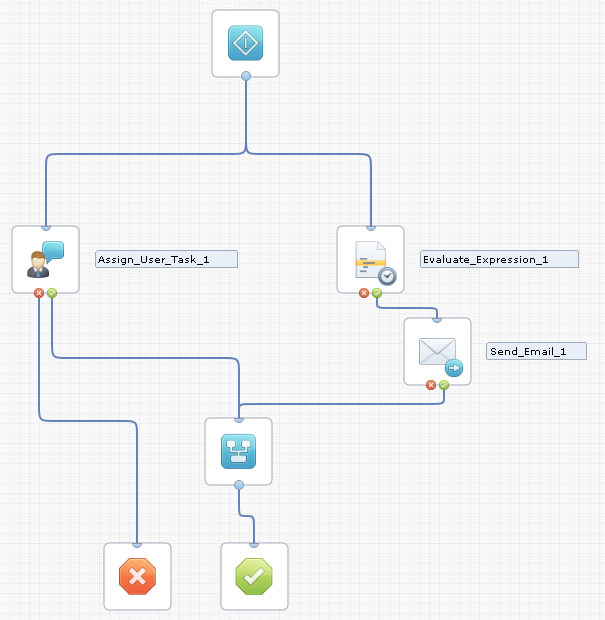
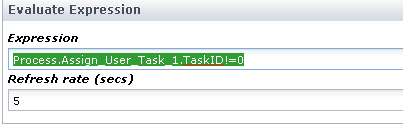
You can use the Evaluate Expression operator to wait until the Assign User Task expression evaluates to true while refreshing and evaluating the expression every five seconds.
The Evaluate Expression parameters can be:
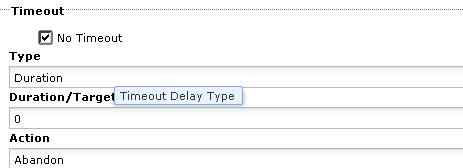
Ensure that you select the No Timeout check box in the Assign User Task Timeout parameters to avoid a timeout for this operator until the expression evaluates to true.
Next, once the Task ID is calculated and is no longer zero, the expression evaluates to true and the Send Email operator sends an email with the following embedded URL as part of the message:
getOrchestratorURL() + "itpam" + "?ROID=" + Process.Assign_User_Task_1.TaskID + "&page=replytask"
The And operator synchronizes the two branches of the process into a single one.
When the user receives the email, the task is presented in a URL that the user clicks to continue to the Login page of CA Process Automation. After authentication, the user is taken directly to the form attached to the task, and the user can then directly reply to the specific task.
|
Copyright © 2014 CA.
All rights reserved.
|
|