

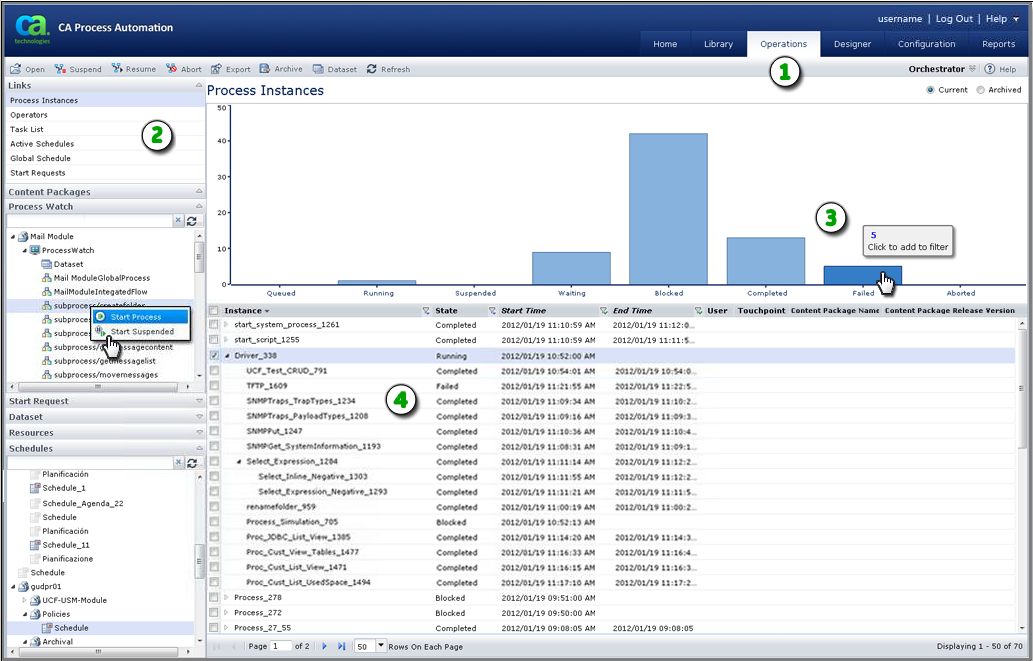
The Operations page has the following functions:
|
Item: |
Description: |
|---|---|
|
|
Operations Tab: Click this tab to navigate to the Operations page, a high-level automation dashboard. From the toolbar, you can select an Orchestrator, open a process instance, and control the process instance. |
|
|
Links Pane: Select a link to view the associated items. For example, click Process Instances to view all processes by state. Expand a group to browse folders and select an instance. Some objects include a shortcut menu of commands that you can right-click to access. For example, the illustration shows that the user right-clicked a Process Watch object subprocess and clicked Start Process in the shortcut menu. |
|
|
Chart Area: Point to a bar in the chart area to display the number of items that match the associated state. Click a bar to display only items that match the associated state. |
|
|
Operations Table or List: Depending on your selection from the Links pane, this area displays the resulting data in a table or list. |
|
Copyright © 2014 CA.
All rights reserved.
|
|


