

Forms › Start Request Forms › Monitor Start Request Form Instances and Process Instances
Monitor Start Request Form Instances and Process Instances
After you create and design a Start Request Form, it must start as part of another process, or you can manually start it. When a form starts, it results in a new form instance with a unique name consisting of the form name plus the form's runtime object ID. When a process starts, it results in a new process instance with a unique name consisting of the process name plus the process runtime object ID. Examples follow:
MyStartRequestForm_239
MyProcess_241
Follow these steps:
- Click the Operations tab.
- In the Operations pane, navigate to any of the following locations to view form and process instances:
- Expand Start Requests, expand folders, and click a Start Request Form.
- Expand Process Watch, expand folders, expand a Process Watch object, and click on an optional Start Request Form that you previously added to the object.
- Expand Links and click Start Requests.
- In the Operations pane, navigate to one of the following locations to start a form and its associated process:
- Expand Start Requests, expand folders, and click a Start Request Form. Right-click the form and choose Start.
- Expand Process Watch, expand folders, expand a Process Watch object, and click on an optional Start Request Form that you previously added to the object. Right-click the form and choose Start.
- Repeat step 2 to view both the form instance and the process instance.
- To monitor the actual process instance, click a row and then click Open Process Instance in the toolbar.
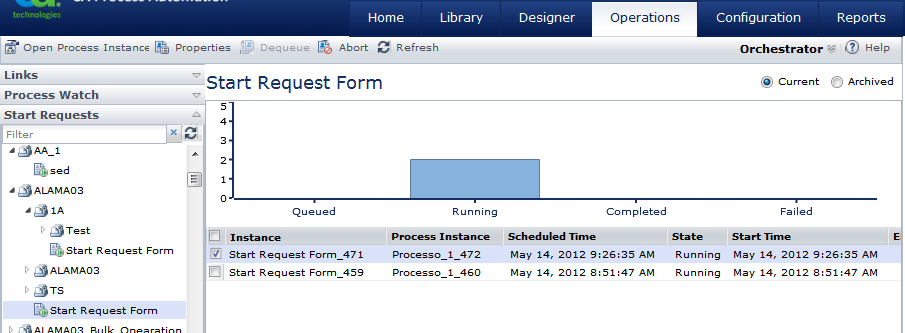
Notes:
- The Process Instance column shows no data for any forms in the Queued state. Queued forms do not instantiate a process instance until the form starts Running.
- You can change the process instance name while the process is running by using Process.UserInstName. Click Refresh to view the new Process Instance name.
- The Process Instance column does not include any forms that were already running before an upgrade to the current version of CA Process Automation.
Copyright © 2014 CA.
All rights reserved.
|
|