

Most CA Process Automation operators support custom exit ports. When you add a custom port, specify the following:
You can also move the port to improve your view of the link. Press the Ctrl key while clicking the port to move it to supported positions along the right or bottom edges of the operator.
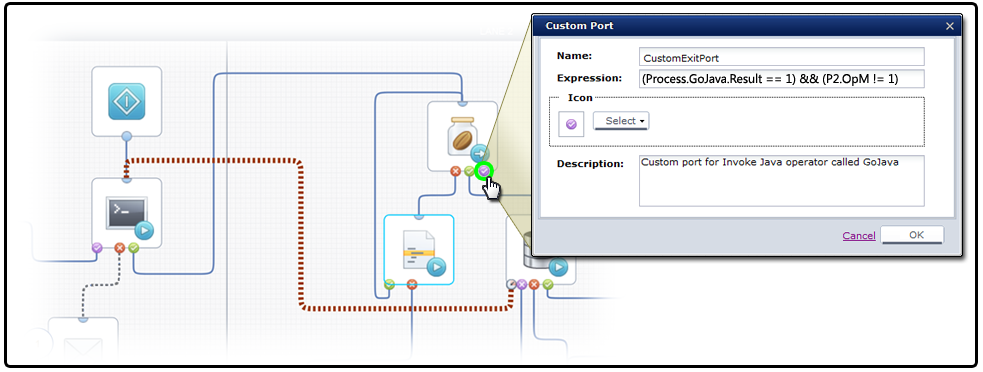
In the Expression field, enter any valid JavaScript expression that returns a Boolean value, either True or False. You can use the custom port expression to evaluate the result code of an operator. The result code indicates the outcome of the operator and is returned by the Result variable in the operator dataset. The custom link is activated only if the expression returns a True condition.
To activate a link based on a specific value for the result code, use the following syntax:
Process.Operator.Result == value
The keyword Process refers to the process dataset. Operator is the value specified by the Name parameter of the operator. Result is the field name for the result code variable in the operator dataset.
To activate a port, you can also construct an expression as a comparison between multiple statements. In this example, the value for GoJava must be 1 and the value for operator OpM in process P2 must not be 1:
(Process.GoJava.Result == 1) && (P2.OpM != 1)
When a process runs and encounters an operator with no defined exit port, the process goes to a Blocked state.
When an operator has multiple custom ports, the application runs all the ports with an exit condition that returns a True value. Avoid overlapping logic for exit ports if you do not want to activate more than one exit link at a time. This condition is more likely to occur if you include both standard and custom ports on the same operator. For example, if you include a custom port activated by the expression Process.A==5 and a standard successful port on an operator, an operator activates both exit links when Process.A returns 5. To trap values and route processing to a single port, it would be better to use more than one custom exit port to specify exclusive expressions, such as:
(Process.A == 5) AND (Process.OperatorName.Result == 5)
(Process.A == 5) AND (Process.OperatorName.Result != 5)
(Process.B == "finance") AND (Process.OperatorName.Result == 7)
(Process.OperatorName.Result == 1) AND (Process.A <> 5)
In this example you could also include the standard failure link to cover when the operator result variable returns 0. If you are uncertain about the results of different outcomes, you can use the simulation function on an operator to test outcomes of different permutations of settings and values.
Note: Use variable assistance features (press Ctrl + Space) to ease constructing these expressions.
You can edit a custom port any time after you add it to an operator by double-clicking the port. If you cannot predefine a course of action for a particular exit condition (for example, when a database import fails), you can omit a link for it. When an exit condition for an operator is not specified by any exit link, the process enters a suspended state until a user can take corrective action.
|
Copyright © 2014 CA.
All rights reserved.
|
|