

|
|
|
To define a Refers To relationship:
A refers to link is created between the two entities:
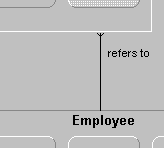
Note: This creates a many-to-one relationship, indicating that an employee can be assigned to many tasks, but that a task can have only one employee assigned to it.
Note: Creating the relationship between the Task and Employee entities created the triple Task refers to Employee.
You have now defined relationships between the Project, Task, and Employee entities. Defining these relationships caused the primary keys of the Employee and Project entities to become foreign keys of the Task entity. Next, you change the diagram to display these foreign keys.
Your diagram changes to display the Employee ID and Project ID attributes in the Task entity.
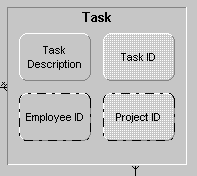
Note: The two foreign keys have dashed borders. The Project ID node is displayed in the same color as the Task ID node, as it becomes part of the Task entity’s key (because it results from an owned by relationship). This type of attribute is usually called a parent key because it is the key of the parent entity. The Employee ID node is darker because it is not part of the Task entity’s key.
| Copyright © 2012 CA. All rights reserved. | Tell Technical Publications how we can improve this information |