Previous Topic: Defining Relationships Between Entities

Next Topic: Defining a Refers To Relationship

Defining an Owned By Relationship

To define an Owned By relationship:

  1. If you closed the diagram, open it again.
  2. Select the Task entity.
  3. Hold down the Control key and right-click the Project entity.
  4. From the pop-up menu, choose Create Link, and then Owned By.

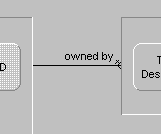
    An owned by link is created between the two entities:
    PLEX--Defining an Owned By Relationship

    Note: The link shows a one-to-many relationship between the two entities. This indicates that a project can have many tasks, but that a task can belong to only one entity.

  5. If the label owned by is not visible, you can turn on label display by clicking the View menu, Display Link Labels, Link Names.
  6. If the link label appears on top of one of the nodes, click the label to select it (the cursor looks like this PLEX--Defining an Owned By Relationship (2) when a link label is selected), and drag the label to a more appropriate location.

    Next, you will focus the Model Editor on the Task entity, which shows that a triple was added to your model when you created the owned by relationship between Task and Project.

  7. Set the Object Browser to display entities. If you do not see the Task entity, refresh the Object Browser.
  8. Drag the Task entity from the Object Browser to the bottom section of the Model Editor. This shows all of the triples associated with the Task entity.

    Notice that creating the relationship between the Project and Task entities created the triple Task owned by Project.

    PLEX--Defining an Owned By Relationship (1)

  9. Click the Clear Focus toolbar button. Clearing the focus in the Model Editor causes the editor to show all triples in the model.

    Next, you will define the refers to relationship between the Task and Employee entities.