

|
|
|
The Task and Employee nodes do not have asterisks, as the Project entity did. This shows that these entities have no attributes, yet. In this section, you use the Diagrammer to define a primary key and non‑key attributes for both entities.
To define attributes for Task and Employee:
The Diagrammer creates the sub-node:
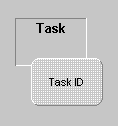
The AutoLayout function enlarges parent nodes so that they can hold all of their sub-nodes. It also organizes the sub-nodes within the parent node. In this case, it enlarges the Task node, and puts the Task ID node inside it.
Note: When right-clicking entity nodes, make sure you are clicking the parent node, and not any of its sub-nodes.

Note: If it is already open, click the Clear Focus toolbar button:
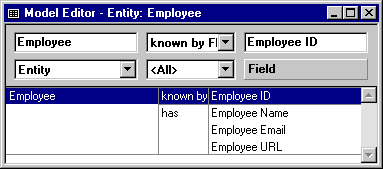
Defining entities and their attributes in the Diagrammer created corresponding triples in the model. In the next section, you define relationships between the entities (which also creates triples).
| Copyright © 2012 CA. All rights reserved. | Tell Technical Publications how we can improve this information |