Previous Topic: Using Inheritance to Define the Project Entity

Next Topic: Using Your Generated Application

Generating and Building the Project Entity

You have now defined fields for the Project entity, and specified the properties of those fields. You have also defined functionality for the Project entity, providing a basic user interface and the ability to write to and read from a database. Now, you are ready to generate and build the Project entity. This is the process in which CA Plex turns your model into source code (generating), and then turns your source code into executable objects (building).

After you have generated and built the objects in your model, you will be able to run the program to see what you created.

To generate and build the Project entity

  1. From the Tools menu, choose Generate and Build, or click the New Gen and Build toolbar button.

    PLEX--Generating and Building the Project Entity (1)

    The Generate and Build window appears. The Message Log pops up when you open the window. You can ignore its messages for now, and minimize it.

  2. If the Generate and Build window shows library objects, turn them off with the Show/Hide Library Objects toolbar button.

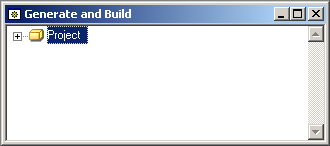
    The Generate and Build window now shows only the Project entity:

    PLEX--Generating and Building the Project Entity (9)

    PLEX--Generating and Building the Project Entity (2)

  3. Select the Project entity.

    PLEX--Generating and Building the Project Entity (10

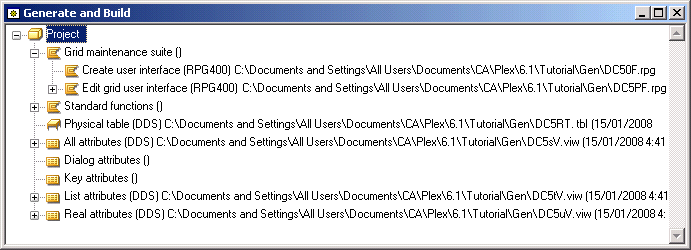
  4. Click the Generate and Build toolbar button. When you click this button, the Project entity expands, showing all of its scoped objects that can be generated. Those that will be generated are highlighted.
  5. A Confirm Generate dialog appears, indicating the number of objects that are generated. Not all of the scoped objects are selected. Click Yes.
  6. CA Plex generates those objects, and then summarizes the generation process. Click OK on the summary dialog when the generation completes (until the generation is complete, the button says Cancel).

    Note: Generating these objects causes warnings; one indicates that the length of a field on a panel differs from its length in the program, and the other indicates that no event was found for a grid subfile selector value *Blank. Disregard these warnings, as they do not affect your compiled application.

  7. CA Plex prompts you to compile and build the objects. Click Yes both times.

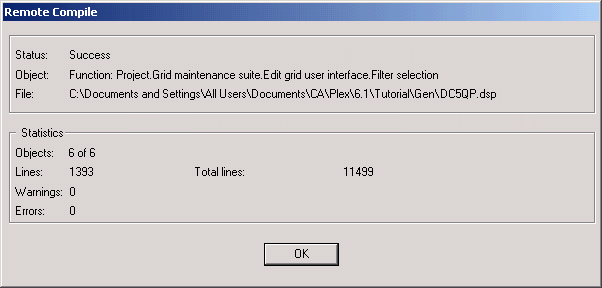
    CA Plex then sends the generated code to the System i you specified previously (For more information, see Specifying Build System Settings). The window shows the progress of transferring the source code on the Remote Compile dialog.
    PLEX--Generating and Building the Project Entity (4)

  8. After the code is transferred to the System i server, the server compiles it. Click OK on the Remote Compile dialog.

    PLEX--Generating and Building the Project Entity (5)

  9. Click the AS/400 Build Status toolbar button to display the status of your build.

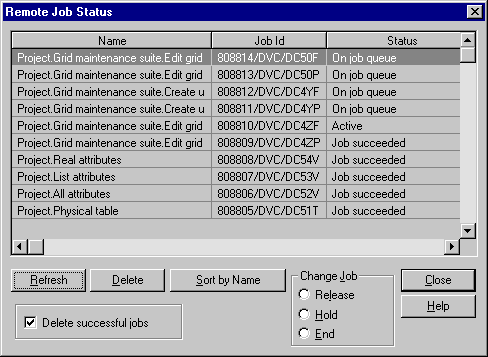
    The Remote Job Status dialog appears.
    PLEX--Generating and Building the Project Entity (6)

  10. Click Refresh until all of the jobs indicate that they successfully compiled.
  11. When the build is done, close the Remote Job Status dialog.
  12. Save your model.
  13. From the Build menu, choose System i Message File, then Generate and Build.

    Note: Building the message file generates an error, indicating there was no text for "Format ODBC time value." Do not worry about this error; it will not keep your generated application from running properly.
  14. From the Build menu, choose System i Field Values File, and then Generate and Build.
  15. Find the function Project.Edit Grid User Interface, in the Generate and Build window, and note its implementation name (following the object name).

    PLEX--Generating and Building the Project Entity (7)

  16. Start a 5250 session.
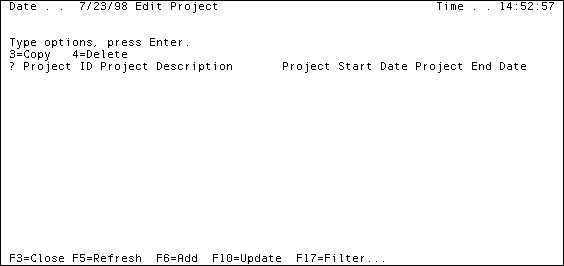
  17. Enter call AA4ZF '', where AA4ZF is the implementation name you noted in Step 15.

    Your generated application starts, and should look like this:
    PLEX--Generating and Building the Project Entity (8)