Previous Topic: Modifying the Property Sheet

Next Topic: Generating and Building

Calling the Property Sheet

You have now changed the property sheet so that when you call it, you can specify which tab to display. Next, you add the calls from the Project Manager function to the property sheet.

To call the property sheet:

  1. Switch back to the action diagram for the Project Manager function and go to the Events Post Point. If necessary, you can use the menu items on the Window menu to switch between editors.
  2. Click below the Events construct you already added.

    Before you can add the next event construct, you need to create a local variable. You then add a field to the variable that you use when calling the property sheet.
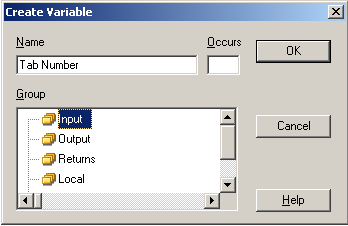
  3. Right‑click one of the variable groups in the Variable Palette, and choose Create Variable from the pop‑up menu.
  4. Select the Local variable group from the Group list.
  5. Enter Tab Number in the Name field, and click OK.

    Calling the Property Sheet

    This creates a variable called Tab Number in the Local variable group. Next, you add a field to the variable.

  6. In the Variable Palette, expand the Local variable group.

    CA Plex provides a field called Int in the FIELDS Pattern Library that stores literal values for integers. Use the field in this function to specify the tabs in the property sheet by their number (Tab 1 and Tab 2).
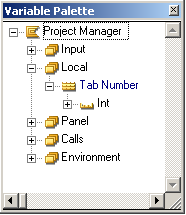
  7. Set the Object Browser to display fields, make sure library objects are showing, and drag the FIELDS/Int field from the Object Browser to the Tab Number variable:

    Calling the Property Sheet (2)

    Next, tell the Project Manager function what to do when the Maintain Projects and Maintain Employees buttons are clicked.

  8. In the Action Diagram Palette, expand the Events folder.
  9. Drag the Maintain Projects logical event from the Action Diagram Palette to the input line of the Action Diagrammer, and press Enter.
  10. Drag the Project Property Sheet function from the Object Browser to the input line of the Action Diagrammer, and press Enter. Notice that CA Plex automatically assumes you are entering a Call statement.

    The Parameter Mapping dialog appears. Next, tell the Project Manager function what value to pass to the Project Property Sheet function. The Project Property Sheet function uses that value to determine which tab to display.

  11. Click Map Parameter.

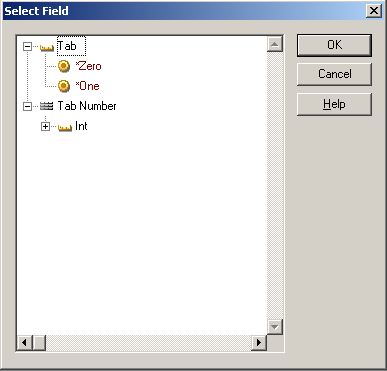
    The Select Field dialog appears:

    Calling the Property Sheet (3)

    Notice that both the Tab Number variable and the Int field you added to it are displayed.

  12. Expand the Int field.
  13. Select the value 2 and click OK.

    This tells the property sheet to open the Projects and Tasks tab when it is called. Next, you tell the Project Manager function to open the property sheet when the Maintain Employees button is clicked. But this time, you make the Employees tab show.

  14. Click OK to close the Parameter Mapping dialog.
  15. Click below the Maintain Projects Event construct in the action diagram.
  16. Clear the input line of the Action Diagrammer.
  17. Drag the Maintain Employees logical event from the Action Diagram Palette to the input line of the Action Diagrammer, and press Enter.

    This adds another Event construct to the action diagram.

  18. Repeat Steps 8-14 to call the Project Property Sheet function for the Maintain Employees logical event, but instead of mapping to <Int.2>, map it to <Int.*One>.

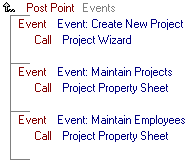
    The action diagram should now look like this.
    Calling the Property Sheet (4)

  19. Save your model and close the action diagram.