

|
|
|
When end users click the Create Project button, you want to call the Project Wizard function so that they can define a new Project record and the Task records that go with that Project.
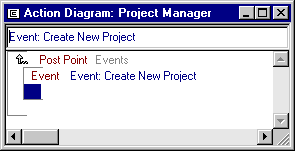
To do this, add an Event construct specifying what should happen when the Create New Project event is triggered.
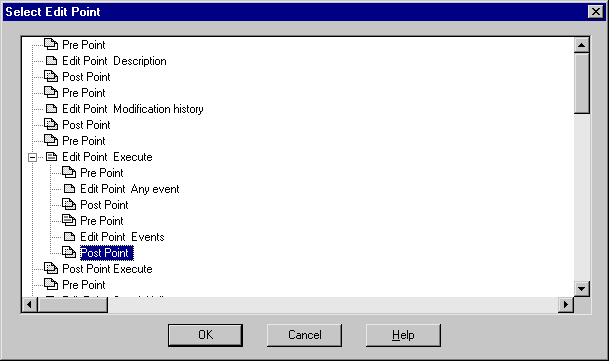
To add action diagram code for the Create New Project event:
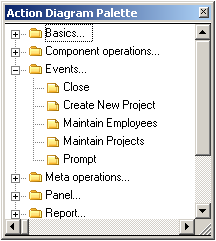
Note that the three logical events you created are listed in the Events folder:

This adds an Event construct:
A function call statement is added to the action diagram:
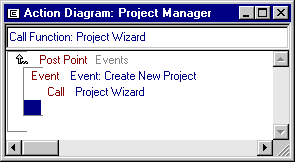
This tells the function to display the wizard when the Create New Project button is pressed.
At this point, you will only map the one event. Before you can map the other two events to call the property sheet, you must make a small change to the property sheet function.
| Copyright © 2012 CA. All rights reserved. | Tell Technical Publications how we can improve this information |