

|
|
|
Now you can test the wizard to see how the changes and additions you made work.
For best results, make sure you have entered some Employee records into the database before you test the wizard. For more information, see Adding Employee Records in the Chapter "Modeling Entity Relationships."
To test the wizard:

The wizard appears:
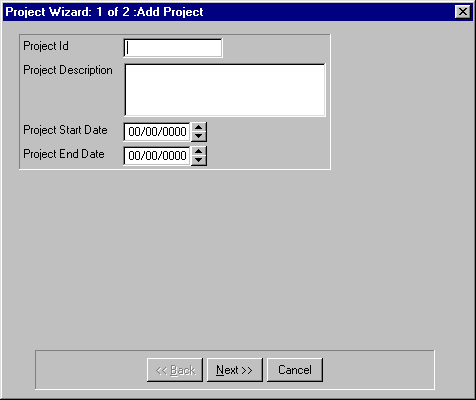
In the next step, you create a new project by entering a Project ID and a description.
Note: You made all of the fields except Project ID (the key field) optional, so you do not have to enter a project start and end date.
Port client to Java, to enable staff to view email from a browser.
The second part of the wizard appears. Notice that the Project ID field is already filled in for you.
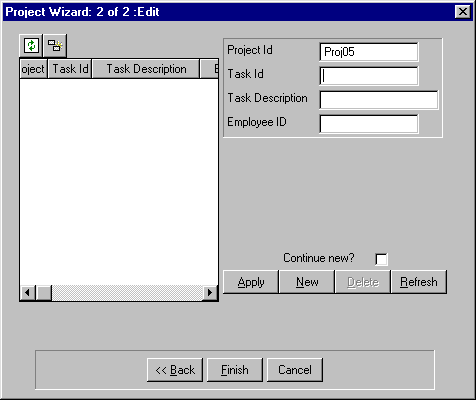
Setup client
The Selector dialog appears:
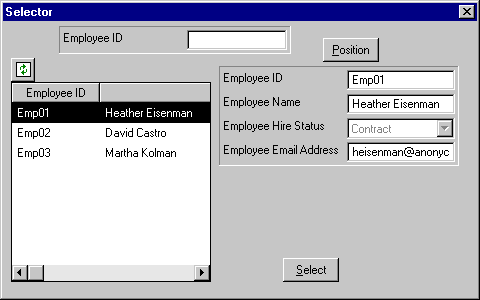
At this stage, you can enter more tasks if you want.
| Copyright © 2012 CA. All rights reserved. | Tell Technical Publications how we can improve this information |