

|
|
|
You have now added the Project ID field to the Restrict variable in the Task.Edit function. Remember that Task.Edit is the function that the wizard uses to display its second part.
Next, you add action diagram statements to restrict the display of tasks on the second part of the wizard. The first step is to put the Project ID field into the Restrict variable.
To set the Project ID field value:

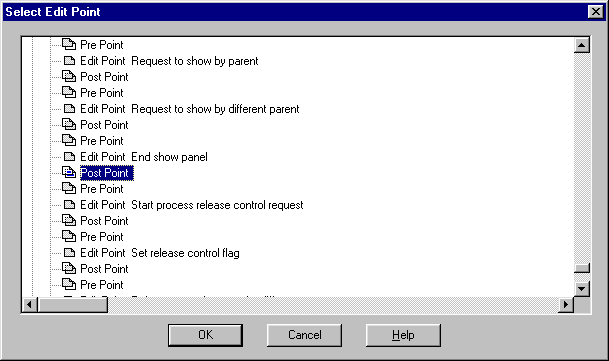
The Select Edit Point dialog provides a conventional way to locate and focus on a particular Pre or Post Point.
Set Restrict<Project ID> = SharedData<Project ID>
Go Sub Reload Grid
The Reload Grid subroutine reads the database to retrieve rows to display on the grid. Because you use the Restrict variable to read only the tasks for a single project, the grid only shows those rows. Adding the Project ID field to the Restrict variable, and then setting its value, is like setting up a display filter.
| Copyright © 2012 CA. All rights reserved. | Tell Technical Publications how we can improve this information |