

|
|
|
In this section, you add some processing that causes the Next button on the Wizard to trigger the creation of a new Project record. Bear in mind that:
The Next button is needed to trigger an event in a different function. Fortunately, the wizard patterns provide the entire infrastructure required—only a few lines of code need to be added.
When the Next button is clicked, it triggers an event in the Add Project function causing the Add Project panel to be hidden (and then the Task.Edit panel to be shown in its place). The Add Project function has edit/collection points (inherited from UISTYLE/FrameChild) that enable us to intervene in this processing:
Select the Post Point following this Edit Point and expand it by pressing the space bar.
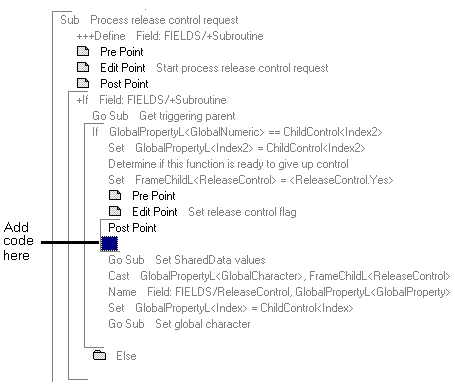
This Post Point corresponds to when end users click the Next or Back buttons to move to a different part of the wizard. At that stage, this you want to create a Project record using the values entered by the user. All the processing required to validate the entered values and then create the record is provided in a subroutine called Process Insert. You simply need to call this subroutine using a Go Sub statement.
Go Sub Process Insert
There is one further refinement required. The creation of the record may fail for a variety of reasons. For example, the user may not have entered all the required values or they might try to create a record using the key of an existing record. In these circumstances, you need to prevent the wizard moving to the next screen. There is a simple flag you can set to control this—the ReleaseControl field.
There are a set of fields, Environment fields that indicate whether the creation of a record was successful. The following If instruction uses a compound condition separated by OR operators to test these fields.
Because this instruction is quite long, it is shown on three lines, but you need to enter the entire instruction on one line. You can type the entire line or drag or drop the required objects from the Variable Palette (see the following example).
If Environment<*Validation> IS <*Validation.*Abnormal>
   OR Environment<*Returned status> IS <*Returned status.*Abnormal>
   OR Environment<*Call status> IS <*Call status.*Abnormal>
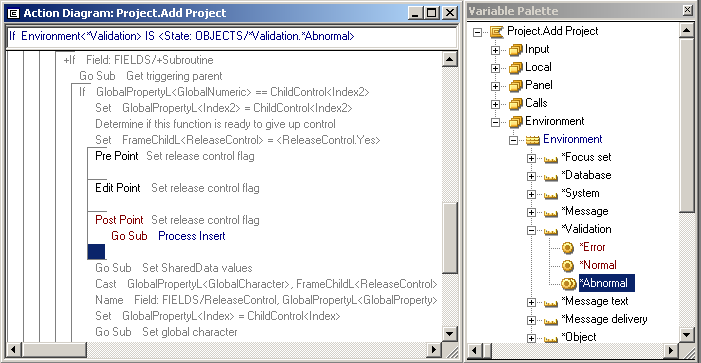
Note: It is often easier to enter long action diagram statements by dragging the necessary parts from the palettes rather than typing them. In this example, the state *Validation.*Abnormal was dragged from the Variable Palette to the input line.
Set FrameChildL<ReleaseControl> = <ReleaseControl.No>
This statement prevents the wizard from moving to the second part if the creation of the Project record fails.
Note: You can find the FrameChildL variable in the Local variable group in the Variable Palette.
| Copyright © 2012 CA. All rights reserved. | Tell Technical Publications how we can improve this information |