

You can select to show or hide the object browser by clicking the Show/Hide Browsers toolbar button.
You can keep the Object Browser open while you work. The object browser lets you use it as a palette from which you can drag-and-drop the objects you need.
The following graphic shows the object browser as it appears in the application:
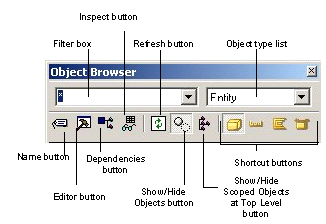
By default, the Object Browser shows you objects of one type at a time. You can see other objects if they are scoped by the main object type. For more information, see More About Scope section in this chapter.
The Object Browser has shortcut buttons for displaying entities, fields, and functions. Setting the Object Browser to display functions only displays unscoped functions; functions that are scoped by another object (such as an entity or a view) are displayed when the Object Browser is focused on that object type.
You can also select an object type to view from the object list.
You can click the Show/Hide Library Objects toolbar button to show library objects.
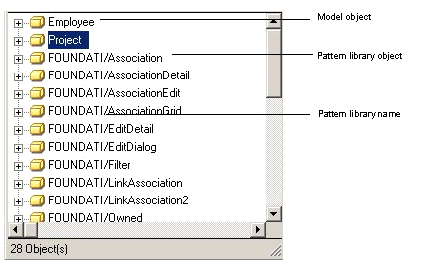
You can tell that an object is in a pattern library because the library name is prefixed to the object name by default. For instance, the third entity in this graphic is FOUNDATI/Association, which means that the entity Association comes from the FOUNDATION pattern library.
|
Copyright © 2014 CA.
All rights reserved.
|
|