

As an administrator in an enterprise environment, you want to organize your devices into logical groups that Data Aggregator can monitor. In this scenario, you create a group that lets you discover and monitor your end-user switches separately. You want to monitor those switches separately because the uplink interfaces on those end-user switches have a significant impact on your network. Separate monitoring lets you report on the inventory that is related to that device collection for better troubleshooting. This scenario shows how REST web services can be used to configure device groups in CA Performance Center and Data Aggregator. This configuration also provides the framework to write proprietary automation scripts that integrate with your third-party or proprietary management system.
Note: This scenario does not cover the configuration of monitoring profiles in Data Aggregator, which is done after group configuration is complete. Monitoring profiles are associated with device collections and are used to keep discovered inventory up-to-date.
To manually execute web service calls, use either a REST client editor or an HHTP tool that sends requests and gets responses. In this scenario, we simply refer to the REST client editor to perform these procedures.
Note: To automate, you would write your own application or script that leverages the web services that are described in this documentation.
The following diagram illustrates the process of discovering devices and monitoring components in an enterprise using the REST web services:
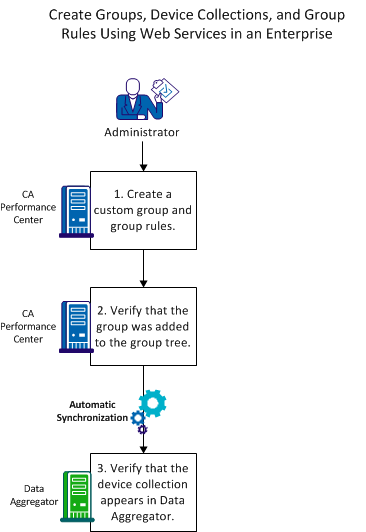
To create custom groups and group rules for organizing devices and component items using REST web services, follow these steps:
Note: Perform the previous steps using CA Performance Center REST web services.
Note: Perform the previous step using the Data Aggregator REST web services.
|
Copyright © 2015 CA Technologies.
All rights reserved.
|
|