

The procedure for creating groups within a custom tenant definition is slightly different from the procedure to create groups in the Default Tenant.
Supply the group ID or the group path that you retrieved in a previous procedure as parameters. But create the group in the "/All Groups/Defined Tenants/" path.
Here is an example of how to add groups to a non-default tenant. In the user interface, the result looks like the following image:
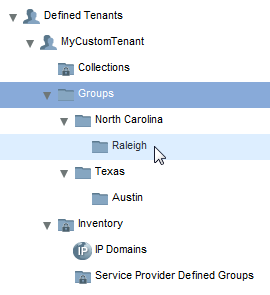
Follow these steps:
http://CA Performance Center Server IP Address:8181/pc/center/webservice/groups/
false/false
<GroupTree path="/All Groups/Defined Tenants/MyCustomTenant/Groups">
    <Group name="North Carolina" desc="NC in the Southeast Region" inherit="true" type="custom group"/>
</GroupTree>
A new group, 'North Carolina,' is created under the custom tenant, MyCustomTenant. Only the global administrator and the administrator for the custom tenant can manage this group, and only MyCustomTenant users can see this group.
|
Copyright © 2015 CA Technologies.
All rights reserved.
|
|