

If the predefined user roles provided with CA Performance Center do not fit your requirements, you can add custom user roles. Ideally, you create the roles that each unique product operator requires to perform job responsibilities.
Custom roles work best within a system of custom groups. Custom groups let you precisely grant access to dashboards and product features while restricting access to sensitive data. The same groups that you create to organize data can serve as “permission groups” when you set up user account permissions.
A new role has no role rights until you add them.
Note: When you have finished creating a role, assign it to a user account as a separate step. Roles are inoperative until they are assigned to user accounts. Only users with the 'Administer Users' and 'Administer Roles' role rights can assign roles to user accounts.
Follow these steps:
The current list of roles appears.
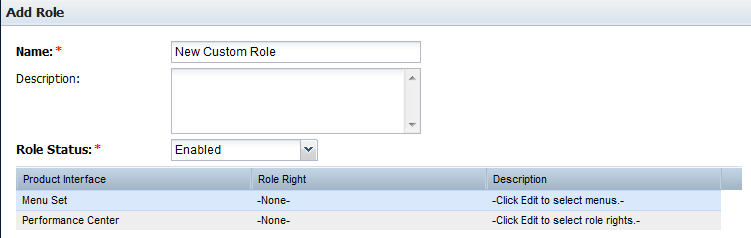
The Add Role dialog opens.
(Optional) Identifies the role. Limited to 45 characters.
(Optional) Describes the role. For example, identifies the job-related duties that the associated user performs.
Enables the role to make it active. Required to give users with this role the access granted by role rights.
The Edit Menu Set dialog opens. Menus that are listed in the 'Available Menus' list can be added to the role.
Use Shift + Click or Ctrl + Click to select multiple items in the list.
The selected item moves to the Selected Menus list.
You return to the Add Role page.
The Edit Role Rights dialog opens, where you can select individual access rights for this role. Role rights that are listed in the 'Available Rights' list can be added to the role. For more information, see Role Rights.
You return to the Add Role page.
The new role is created and appears in the Role List.
|
Copyright © 2015 CA Technologies.
All rights reserved.
|
|