

It can be difficult to keep custom groups up-to-date when systems and networks change. Therefore, you can use rules to populate your custom groups. Newly discovered items that meet rule specifications are added to groups. Similarly, if they do not meet rule requirements or are no longer monitored, items are removed.
Follow these steps:
The My Custom Groups page shows a tree view of group structure and a tabbed view of group properties.
If items have already been added to this group, they appear in the right pane.
The Add Rule dialog opens.
Available options vary based on the data sources registered with CA Performance Center.
A row of drop-down lists and fields appears.
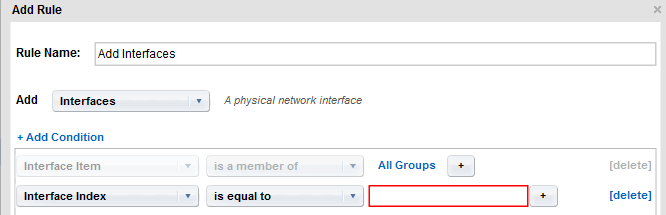
The remaining lists are updated to match the type of item selected.
Important! Use CIDR notation for the IP addresses that you supply for the 'is in subnet' and 'is not in subnet' options. Use dotted-decimal notation for the IP addresses that you supply for the 'is between' and 'is not between' options.
Note: Wildcard characters are accepted in this field, such as an asterisk (*) for a multicharacter match.
An 'OR' drop-down list appears.
Three more dropdown lists appear.
Note: An 'AND' condition indicator does not appear. By contrast, an 'OR' indicator appears when you select an 'OR' operator.
The results are shown in the Group Rules Preview window. You can expand each item type to see the specific items added.
Each item type requires its own rule.
|
Copyright © 2015
2015 CA Technologies.
All rights reserved.
|
|