

The Top Flows by Interface views in CA Performance Center are graphical summaries of high-flow interfaces across the enterprise.
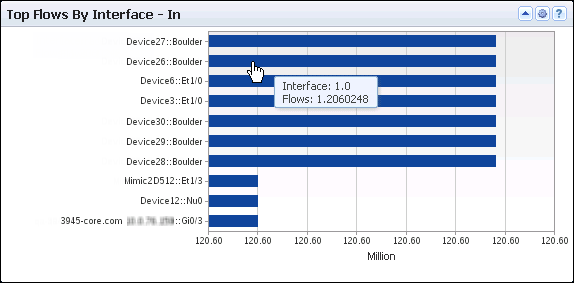
The view includes the following information for a maximum of ten top interfaces that transmitted flows during the reporting period:
Identifies the interface by its device name/interface name (Y-Axis).
Measures the volume of flow data that the interface transmitted (X-Axis). For example, the volume is expressed in megabytes, not in number of flows.
By default, views and reports show the most recent 24 hours of data.
To see the Top Flows by Interface views in CA Performance Center, go to one of the following locations:
Available Actions for This View
You can perform several actions in this view, including the following actions:
Find Flow Volume Data in NFA Console Views and Reports
To see the flow volume of multiple top interfaces in the NFA console, create and run a Custom report. For example, you can view flow volume for the top interfaces in summary pie charts, summary tables, trend charts, and stacked trend charts. For instructions, see the topic "Set Up Custom Reports" in the CA Network Flow Analysis Operator Guide.
To see the flow volume of a single top interface in the NFA console, drill into details from the Enterprise Overview page:
The Flows views display a trend chart of inbound flow volume and outbound flow volume.
To jump to the CA Performance Center Interface Pages data for the selected interface, click the blue arrow next to the Flows title and select CA PC Interface Performance from the menu that opens.
|
Copyright © 2013 CA.
All rights reserved.
|
|