

View a sortable list of all items that have been added to a system group or custom group on the Manage Groups page. You can verify group rules, or you can make sure that custom scripts have appropriately created and populated groups. You can view all items, or a filtered list of items, in a selected group.
Distinguish custom groups, site groups, and system groups in the Groups tree by their icons. For more information, see Types of Groups.
Filters can help you select the types of items you want to see, such as all items added to the group manually. By default, the list on the Items tab only displays items added directly to the group—either manually or by application of a rule (Direct items).
Follow these steps:
A group management page opens.
Note: Tenant administrators only see the items that are associated with their tenant.
Note: Groups that contain subgroups do not show any members on the Items tab. Expand these groups, and select a subgroup to view its members.
The Items tab is selected in the right pane.
Note: Custom groups also display a Rules tab.
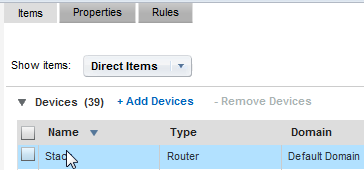
No items may be shown by default.
Includes items that were added directly to the group, either manually or by the application of a rule. You can add and remove items only when Direct Items is selected. The Added By column indicates how the item was added, either manually (User) or by a group rule (Rule).
Includes all items in the group, whether they were added directly or inherited as the children of items that were added directly.
A setting on the Properties tab determines the ability to inherit items. Excluded items are not inherited.
Includes only the children of managed items in the group. For example, when you enable inheritance for this group, all interfaces that are associated with a router are added to the group when the router is added.
Inherited items cannot be removed individually. They are automatically removed when the parent item is removed.
Refers to items that were added to the group because of a rule but later excluded by a group rule. Select this setting to see these items.
A list of all items of the selected type that are included in the group appears. If necessary, click a link to scroll through multiple pages of items.
|
Copyright © 2013 CA.
All rights reserved.
|
|