

Add a user account for each person who will operate CA Performance Center. For security purposes, user accounts should not be shared.
Note: Before you create a user account, confirm that the required roles and groups exist.
Follow these steps:
The page displays the current list of user accounts.
The Create New User wizard opens.
Is a login name for the user account. Limited to 50 characters.
(Optional) Describes the user account to help you identify it.
(Optional) Associates an email address with the user account.
Specifies the language spoken by the operator associated with the user account.
Identifies the authentication method that applies to this user account. The method must match Single Sign-On configuration. Select one of the following:
Defines a password for the user account. The password is limited to 32 characters.
Corresponds to the time zone in which the user will view data.
Default: UTC (Coordinated Universal Time).
Is the role assigned to the user account.
Determines whether the account is enabled for use (activated).
The wizard advances to the next dialog.
The selected permission groups appear in the Selected Groups pane.
Note: As a best practice, do not assign the 'Collections' group as part of a user's permission groups. This group should not be used for reporting.
This option lets the user create custom groups to organize managed items for troubleshooting and analysis. These groups are only available to this user on the My Custom Groups page. They do not appear in the main Groups tree.
A default group is selected for the user automatically. When the user logs in, data from the default group appears in dashboards by default.
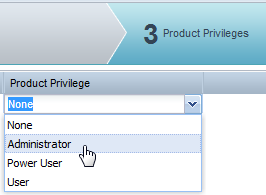
Each registered data source has a separate list.
Select one of the following product privileges from the drop-down lists:
Performs all functions, including creating and editing groups, menus, dashboards, roles, and user accounts.
Creates menus and dashboards. Can also edit and create roles.
Views menus and dashboards designated by an administrator or power user.
Has no access to a data source. This setting prevents the user from following a drilldown path from a view in CA Performance Center to the data source user interface. By default, all users have this product privilege setting for all data sources.
Note: The same user account can have different privileges for different data sources.
The new user account appears on the Manage Users page.
|
Copyright © 2013 CA.
All rights reserved.
|
|