

You allocate access to product features and data as you create each user account. You can use the following method to verify the role rights for a specific user and change them if desired.
Follow these steps:
The Manage Users page opens.
Note: The rights and privileges assigned to the predefined administrator account, 'admin', cannot be modified. This user account must have administrator access to all registered data sources.
The Create New User wizard opens.
All the data sources registered with CA Performance Center are listed on the Product Privileges page.
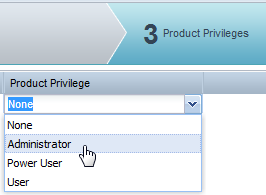
Each registered data source has a separate list.
Performs all functions, including creating and editing groups, menus, dashboards, roles, and user accounts.
Creates menus and dashboards. Can also edit and create roles.
Views menus and dashboards designated by an administrator or power user.
Has no access to a data source. This setting prevents the user from following a drilldown path from a view in CA Performance Center to the data source user interface. By default, all users have this product privilege setting for all data sources.
The changes to product privileges are saved to the selected user account.
|
Copyright © 2013 CA.
All rights reserved.
|
|