Reporting › CA Network Flow Analysis Views in CA Performance Center › Calendar Chart (Flow)
Calendar Chart (Flow)
The Calendar Heat Chart (Flow) view shows the recurrence of flows on an interface. Finding a recurring flow pattern can help you to identify the source of performance issues that otherwise might appear to be intermittent. For example, the view can show the hour of each day when flows are highest.
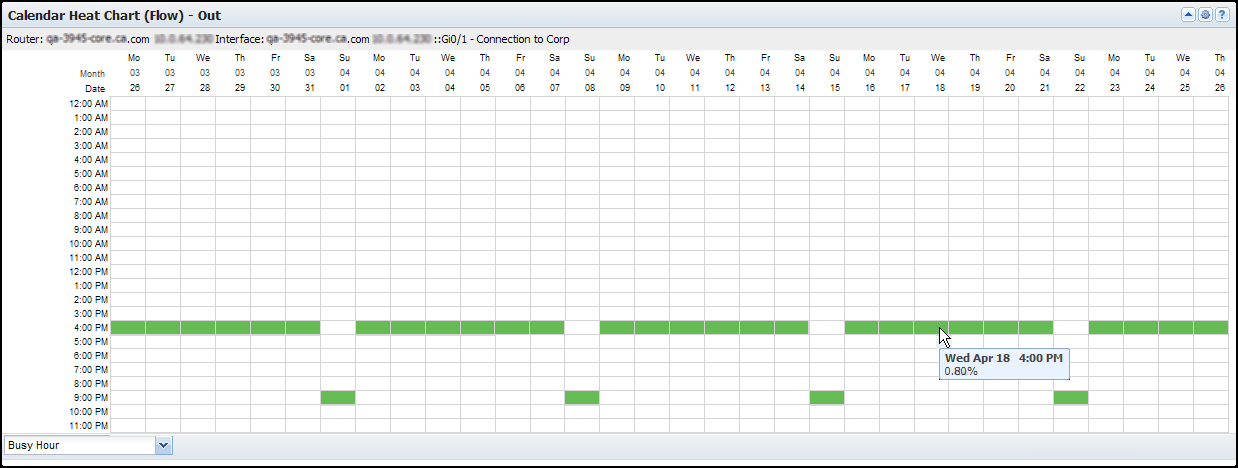
The view includes the following information:
- Identifier
-
Consists of the router name, interface name, and interface description (under the view title).
- Month, Date, and Day of the Week
-
Denote the day that the flows occurred (X-Axis columns).
- Hour
-
Denotes the hour of the day that the flows occurred (Y-Axis).
To see the Calendar Heat Chart view in CA Performance Center, go to the Interface Pages (with an interface selected) and select the Calendar Heat Chart tab.
Available Actions for This View
You can perform several actions in this view, including the ones in the following list:
- Change the data direction, the view name, and the context (the interfaces that can be used in the view) by editing the view settings (as described in this topic).
- Display Tooltip details by holding your cursor over a cell: Date, time, and utilization percentage.
- Click Show All and choose a pattern-matching filter. For example, select Busy Hour to show only the data for the busiest hour of each day.
How to Change the View Settings
Follow these steps:
- Click the Edit icon
 in the view title bar and click Edit.
The View Settings dialog opens.
- (Optional) Edit any of the following settings in the Calendar Heat Chart (Flow) Settings section:
- Title: Change the text that appears in the view title bar.
- Time Display Format: Select the time format for the chart, either 12 hours or 24 hours.
- Zone Start: Set the starting value of each heat zone. The defaults are based on IT industry standards for performance. For example, the default Red Zone Start value is 70 percent utilization.
Defaults: Green Zone Start = 0, Yellow Zone Start = 50, Orange Zone Start = 60, Red Zone Start = 70.
- Business Week Start: Select the day that starts the business week.
Default: Monday.
- Direction Settings: Select the direction of traffic on the selected interface to include in the report:
- Out: Outbound traffic from the interface.
- In: Inbound traffic from the interface.
- Total: Inbound and outbound traffic combined.
- (Optional) Change the context for the view data: Select a different interface from the Context Settings table.
- (Optional) Specify which users are affected by the setting changes: Select a value from the Apply Changes list:
- Default for All Users: Saves the changes to all user accounts as a default for this view.
- For All Tenant Users: Saves the changes so that they are only available to users associated with your tenant.
- My User Account: Saves the changes to your user account as a default for this view.
- My Current Session: Reverts the changes when you log out.
- Click Save to save your changes.
The settings dialog closes. The view refreshes to reflect your updates.
Find Calendar Charts in the NFA Console
You can select an interface on the Interfaces page of the NFA console and display its utilization data in a calendar chart:
To display Flow Forensics-level detail, click the Flow Forensics link and run a Flow Forensics report.
|
Copyright © 2012 CA.
All rights reserved.
|
|

