Reporting › CA Network Flow Analysis Views in CA Performance Center › Interface: Top Conversations › Top Conversations (Table)
Top Conversations (Table)
The Top Conversations (Table) views show rate, volume, or utilization for the top 10 highest-volume conversations on a particular interface.
The example graphic shows a Top Conversation (Table) view that is set to show the rate for each listed conversation. You can configure the view to display conversation rate, utilization, or volume information.
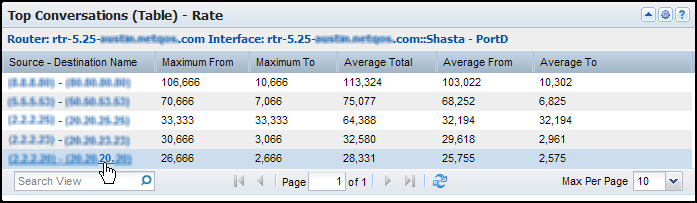
The view contains an interface identification string and a table. The table contains a row for each conversation. The Source - Destination Name shows the IP address or host name of the server that initiated and the server that received the conversation data. The table also contains the following rate, volume, or utilization information (by default):
- Rate: Maximum rate of outbound data (Maximum From) and inbound data (Maximum To) for each conversation; average rates of total data (Average Total), outbound data (Average From), and inbound data (Average To) for each conversation.
- Volume: Number of bytes/megabytes of outbound data (From), inbound data (To), and all data (Total) for each conversation.
- Utilization: Maximum percentage of interface capacity that is utilized by the outbound data (Maximum From) and inbound data (Maximum To) for each conversation; and the average utilization by inbound data (Average From), outbound data (Average To), and total data (Average Total) for each conversation.
By default, views and reports show the most recent 24 hours of data.
To see a Top Conversations (Table) view in CA Performance Center, add it to a custom dashboard.
Available Actions for This View
You can perform several actions in this view, including the ones in the following list:
- Change the type of measurement, the view name, and the interface for the report by editing the view settings.
- Re-sort the table data by clicking a column heading. Click again to toggle between descending and ascending order.
- Change the Max Per Page value to show more or fewer items on each table page.
- Change the columns that are shown in the table: Click near a column border, click Columns, then choose the columns that you want to display.
- Click one of the conversation links to jump to a pre-filtered Interfaces report in CA Network Flow Analysis.
Find Conversation Tables in the NFA Console
You can display tables with conversation volumes in the NFA console for any interface you have selected:
- Top N Conversations -- Report type: Conversations. Filter: Top N Conversations. Presentation menu option: Summary Table; Volume.
View: Conversation Summary Table for the Top N Conversations.
- Conversations for a Single Protocol -- Report type: Protocols. Filter: Single protocol. Report subtype: Conversations. Subtype filter: Top N Conversations. Presentation menu option: Summary Table; Volume.
View: Protocol Conversation Summary Table for a single protocol.
- Conversations for a Single ToS -- Report type: ToS. Filter: Single ToS. Report subtype: Conversations. Subtype filter: Top N Conversations. Presentation menu options: Summary Table; Volume.
View: ToS Conversations Summary Table for a single ToS.
To display Flow Forensics-level detail, click the Flow Forensics link and run a Flow Forensics report.
|
Copyright © 2012 CA.
All rights reserved.
|
|

