Installing Your Product Using CA MSM › Setting System Registry › Maintain a System Registry › How to Investigate a Failed Validation
How to Investigate a Failed Validation
When a validation fails it can be investigated, corrected, and validated again. The following procedures are defined:
- Investigate a validation using the Tasks Page.
- Investigate a validation immediately after a Validation
- Save a message log
Note: This procedure uses a Non-Sysplex system for an example, but the method also works for a Sysplex or a Shared DASD Cluster.
To investigate a failed validation using the Tasks Page
- On the System Registry Page, in the left hand column find the system with a validation status error.
Note: It is helpful to record the System Name that has failed the validation.
- Click the Tasks Tab and then click the Task History link.
- At the Show bar select All task, or My task to list the tasks by Owner.
Note: You can refine the task list by entering USER ID, types, and status.
- Find the Failed validation and click the Name Link.

- The Validate System window appears.
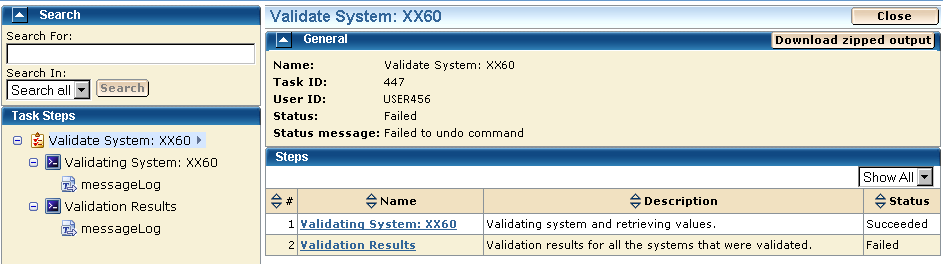
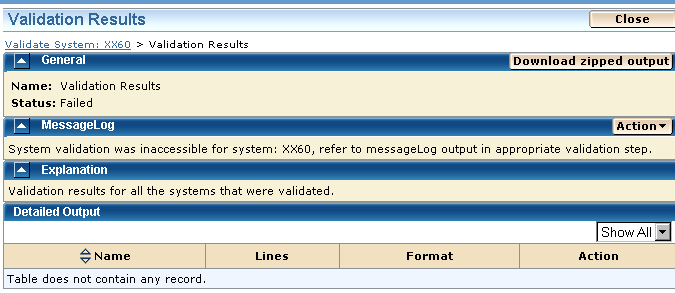
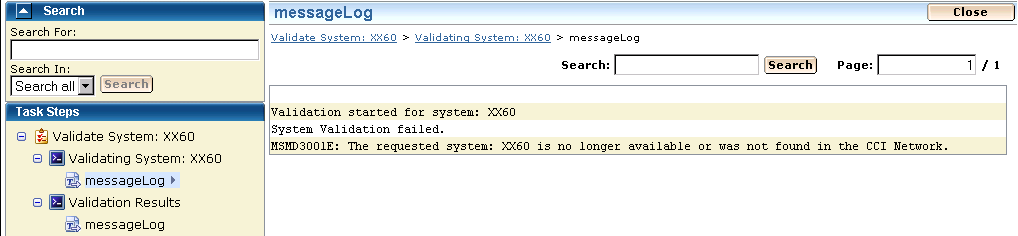
- Click the Validation Results link to view the results and click on the messages logs to review the details for each error. To analyze the error results, see Troubleshooting. Correct the issue and validate again.
The Message Log.
To investigate a failed validation immediately after Validation
- On the System Registry Page, in the left hand column find the system with a validation status error.
Note: It is helpful to record the System Name that has failed the validation.
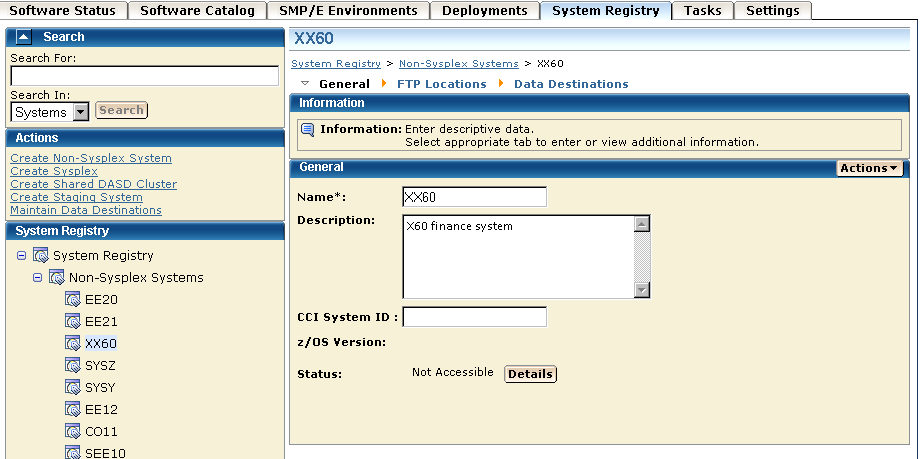
- Click the Detail Button to see the Error details.
- If the Message states "Please validate the system again", click the Validate button. The system validates again.
- Click the Progress tab.
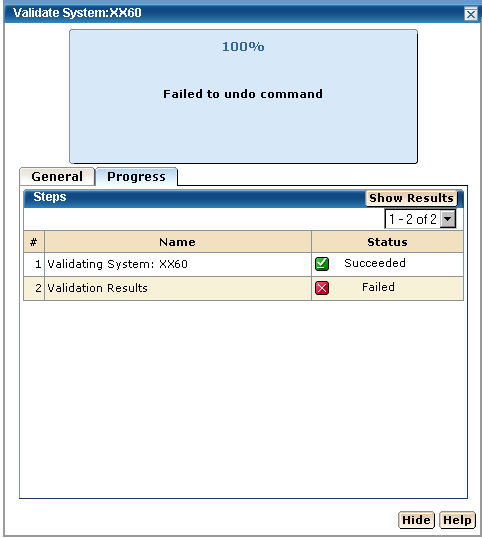
- Go to step 5 in the "To investigate a failed validation using the Tasks Page".