

WebCenter regions can be connected together to form a complex.
In a multisystem environment, operators can monitor the entire complex from a single web browser.
The following diagram provides an overview of the multisystem configuration for WebCenter. On each system for which you want to monitor data, you have a CA OPS/MVS instance and its associated WebCenter region running. Select one CA OPS/MVS instance and its WebCenter as the monitoring region. Use this region for monitoring, and (if necessary) for defining customized monitor formats and filters. Connected WebCenter regions pass data to this monitoring region, which provides the multisystem view.
Connected WebCenter regions see the same data. Formats and filters that are created or customized after the regions are connected are synchronized and available across all connected regions.
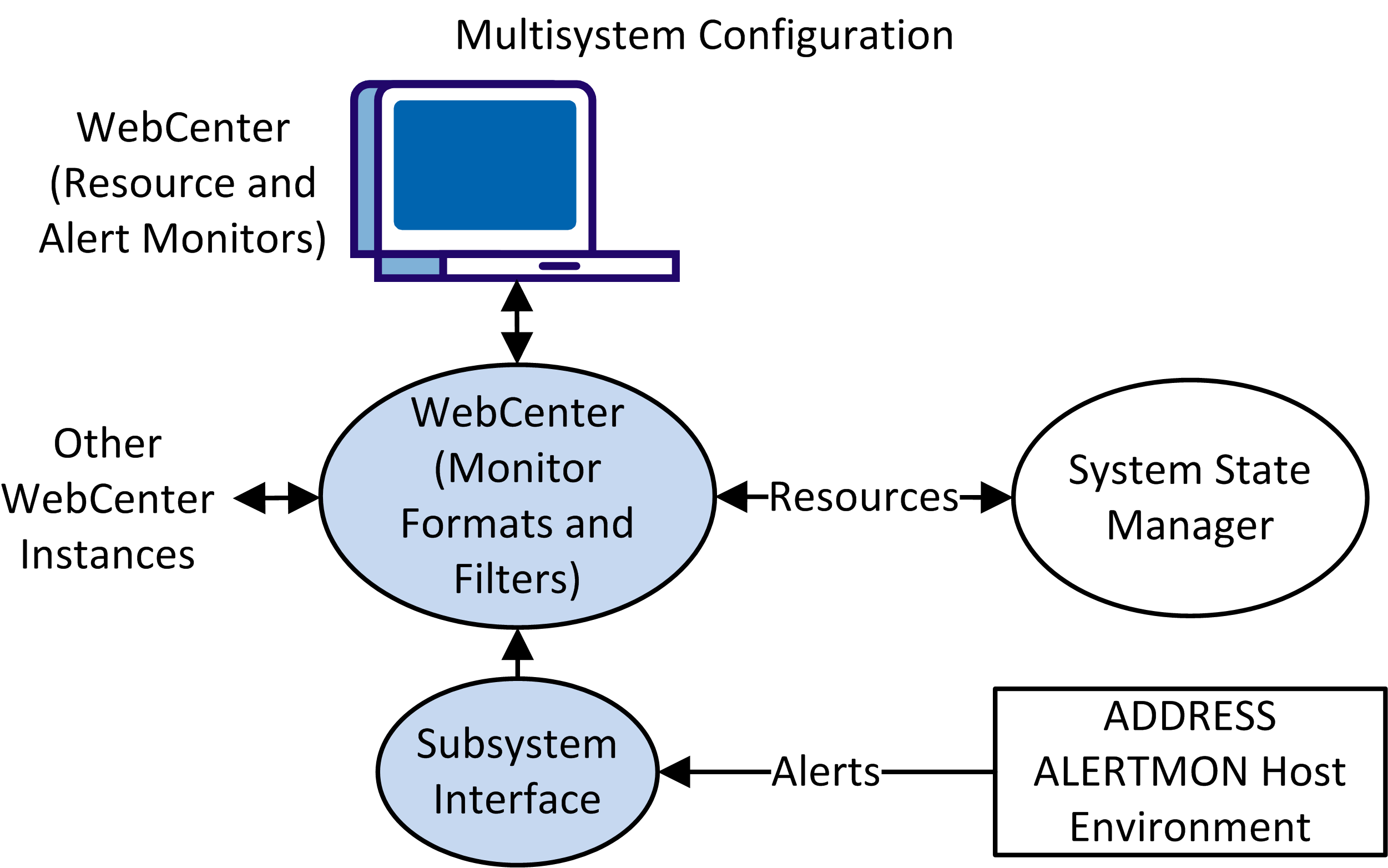
Each WebCenter reads the resource data from its corresponding System State Manager (SSM) Relational Data Framework (RDF) tables. The data is displayed the data on the Resource Monitor.
Each WebCenter also receives alerts from the ADDRESS ALERTMON host environment. The alerts are displayed on the Alert Monitor.
To create a multisystem configuration, connect a stand-alone region to another region to form a complex. Build the multisystem by adding other stand-alone regions to a region in the complex.
Follow these steps:
The Multi-System Support Menu appears.
This option establishes a connection between the local region and another region.
The Remote System Identification panel appears.
Specifies the ACB name of the remote region to which you want to connect this region.
A confirmation panel appears.
A status panel appears. The regions are connected when the status indicates success.
|
Copyright © 2014 CA Technologies.
All rights reserved.
|
|