(Optional) Change the filters that are used in the report definition:
- Remove Filters: Click the X next to the filter name in the Added Filters list to delete a filter from the report definition.
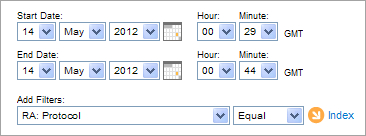
- Add Filters: Use the Add Filters options to filter the displayed data.
For example, to exclude the FTP protocol select RA: Protocol Filter, select NotEqual, and click Protocol Index to select the ftp protocol.
The following list describes the available filters.
Note: Certain filters may not be available for all reports.
- RA: Protocol: Filters for the actual protocol, including Application mapping rules, as defined in CA Network Flow Analysis Administration (Flow Forensics report filter)
- RA: Interface: Filters for the actual interface, excluding aggregate and custom virtual interfaces, as defined in CA Network Flow Analysis Administration (Flow Forensics report filter)
- RA Type-of-service: Filters for the CA Network Flow Analysis type of service as defined in CA Network Flow Analysis Administration (Flow Forensics report filter)
- Destination Address: Filters for the IP address of one or multiple destination hosts (Flow Forensics report filter)
- Destination Autonomous System: Filters for the autonomous number for the destination network (Flow Forensics report filter)
- Destination MAC Address: Filters for the destination MAC address (Flow Forensics report filter)
- Destination Mask: Filters for the IP mask of a destination network (Flow Forensics report filter)
- Destination Port: Filters for the destination port number (0 through 65,535) (Flow Forensics report filter)
- Destination VLAN: Filters for the destination address of the VLAN (Flow Forensics report filter)
- Flow Count: Filters for the number of flows (Flow Forensics report filter)
- Flow Duration: Filters for the duration of the flows (Flow Forensics report filter)
- ICMP: Filters for information about ICMP (Flow Forensics report filter)
- MPLS Top Label: Filters for the top label of MPLS (Flow Forensics report filter)
- MPLS Top Label IP Address: Filters for the IP address of the MPLS top label (Flow Forensics report filter)
- MPLS Top Label Type: Filters for the type of MPLS top label type (Flow Forensics report filter)
- Next Hop: Filters for the IP address of next destination hop (Flow Forensics report filter)
- Percent of Total Traffic for Bytes In: Filters for the percentage of bytes in total traffic (Flow Forensics report filter)
- Percent of Total Traffic for Packets In: Filters for the percentage if packets in total traffic (Flow Forensics report filter)
- Protocol: Filters for the actual IP Protocol Number (6=tcp,17=udp) (Flow Forensics report filter)
- Protocol and Destination Port: Filters for the actual IP Protocol Number (6=tcp,17=udp) and the Destination port number (0 through 65,535) (Flow Forensics report filter)
- Protocol and Source or Destination Port: Filters for the actual IP Protocol Number (6=tcp,17=udp) and the Source or Destination port number (0 through 65,535) (Flow Forensics report filter)
- Protocol and Source Port: Filters for the actual IP Protocol Number (6=tcp,17=udp) and the IP address of a source host (Flow Forensics report filter)
- Router Address: Filters for the IP address of the router (Flow Forensics report filter)
- Router Address and Interface In: Filters for the router address and router interface (in) index number (Flow Forensics report filter)
- Router Address and Interface In or Out: Filters for the router address and router interface (in or out) index number (Flow Forensics report filter)
- Router Address and Interface Out: Filters for the router address and router interface (out) index number (Flow Forensics report filter)
- Source Address: Filters for the IP address of one or multiple source hosts (Flow Forensics report filter)
- Source Autonomous System: Filters for the autonomous number for the source network (Flow Forensics report filter)
- Source MAC Address: Filters for the source MAC address (Flow Forensics report filter)
- Source Mask: Filters for the IP mask of a source network (Flow Forensics report filter)
- Source or Destination Address: Filters for the IP address of a source host or a destination host (Flow Forensics report filter)
- Source or Destination MAC Address: Filters for the source or destination of the MAC address (Flow Forensics report filter)
- Source or Destination Mask: Filters for the IP mask of a source network or a destination network (Flow Forensics report filter)
- Source or Destination Port: Filters for the source port number or the destination port number (Flow Forensics report filter)
- Source or Destination VLAN: Filters for the source or destination of the VLAN (Flow Forensics report filter)
- Source Port: Filters for the source port number (Flow Forensics report filter)
- Source VLAN: Filters for the source VLAN (Flow Forensics report filter)
- TCP Flags: Filters for the Transmission Control Protocol (TCP) flags (Flow Forensics report filter)
- Type-of-service: Filters for the IP type of service number (0 through 255) (Flow Forensics report filter)
- Volume of Bytes In: Filters for the volume of bytes in (Flow Forensics report filter)
- Volume of Packets In: Filters for the volume of packets in (Flow Forensics report filter)