Administering CA Network Flow Analysis › View Physical and Virtual Interfaces › Review the Active Interface Page Options
Review the Active Interface Page Options
Use the Active Interfaces page to view and manage active routers, interfaces, and custom virtual interfaces (CVIs).
Follow these steps:
- Open the Active Interfaces page:
- Select Administration from the NFA console menu.
The Administration page opens.
- Select Interfaces: Physical & Virtual from the Administration menu.
The Active Interfaces page opens, which lists the current routers and their active interfaces.
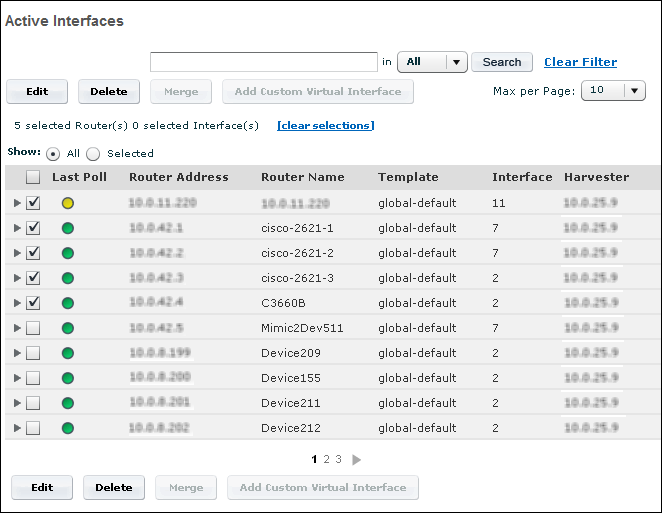
The Active Interfaces page includes the following options:
- Search options: Search for routers, interfaces, or custom virtual interfaces (CVIs) whose addresses or names match a text string. To clear the search, click Clear Filter.
- Edit: Modify several of the attributes of a router, interface, or CVI.
- Merge: Combine the data for two or more selected physical interfaces or two or more selected CVIs.
- Add Custom Virtual Interface: Create a custom virtual interface that is based on the selected physical interface.
Router Table Elements
Routers are listed on the Active Interfaces page in the form of tables. The router tables contain the following columns.
Table Columns
- Last Poll: Shows the status of the router at the most recent poll:
- Red: Router was not detected.
- Yellow: Router was detected, but no NetFlow data was received from it.
- Green: Router was detected and NetFlow data was received from it.
- Router Address: Shows the IP address of the router.
- Router Name: Shows the user-assigned name of the router. For example, lab1 router.
- Template: Shows the template that is associated with the application.
- Interfaces: Shows the total number of interfaces the router has.
- Harvester: Shows the IP address of the Harvester that collects data from the router.
Interface Table Elements
Interfaces and custom virtual interfaces (CVIs) are listed on the Active Interfaces page in tables nested under their parent routers. To display the interfaces and CVIs for a router, click the arrow next to the router name. Interface tables contain the following elements and columns.
Table Columns
- Traffic Status: Shows the status of the interface at the most recent poll:
- Red: Inactive interface.
- Green: Active interface.
- Class: Indicates whether the interface is a physical interface or a custom virtual interface (CVI). The physical interface icon is a gray box with the letters INT. The CVI icon has a V next to the box.
- Interface Name: Lists the user-assigned name of the interface or CVI.
- Description: Shows the optional information that an Administrator added to help identify the interface or CVI.
- If Index: Shows the index value that is assigned to the interface. The If Index value for a CVI matches the value for the parent interface.
- Type: Indicates the connection type, such as WAN, LAN, or VLAN.
- In Speed: Identifies the inbound speed of the interface or CVI, provided the speed is known.
- Out Speed: Identifies the outbound speed of the interface or CVI, provided the speed is known.
- Domain: Identifies the domain of the interface, provided multiple domains have been defined. If the environment has only one domain, the Domain column is not visible.
- Notes: Provides access to any notes that the Administrator has added for the interface or CVI.

