

|
|
|
The graphical monitor displays groups of resources as graphical images called icons. This monitor uses display attributes to alert you to changes in the status of the represented groups. Changes in an icon are caused by changes in the members in the group. Thus, if an icon changes color, you can look at its members to see what is causing the change.
The display attributes of an icon reflect the status of the represented member that is in the worst state. The attributes are controlled by the display attribute tables, except that icons do not use the highlighting attribute, as all icons appear in reverse video. The display attributes can be customized by a user with the appropriate authority.
Note: For information about the default display attributes and how to change them, see the Administration Guide.
An icon is associated with a group of resources, or a panel, as follows:
A group, when represented by an icon, enables items managed by the region to be presented with a service-driven operations perspective.
When you issue the Z (Zoom) command against an icon associated with a group, the members in the group are listed. You can then monitor the individual resources.
When you issue an operations command against an icon associated with a group, the command acts on all the members.
Important! Issuing commands that return responses against a group with many resources results in many panels that you have to scroll through.
When you issue the Z (Zoom) command against an icon associated with a panel, a panel of component icons is displayed. For example, an icon may represent all the resources in the system EASTTEST. When you select the icon, a panel of icons is displayed. The component icons may contain specific types of resources. Each of these icons may be associated with another panel or with a group of resources. You can follow a very specific path leading directly to any resource that is causing the problem.
You cannot issue operations commands against an icon associated with a panel.
To access the graphical monitor
The Graphical Monitor appears.
Icons on the graphical monitor group resources together. Icons can group different types of resources, and can group resources from different systems.
Typically, each icon is identified by a name. You can enter commands in the command entry window. The following shows an icon and the information it contains.
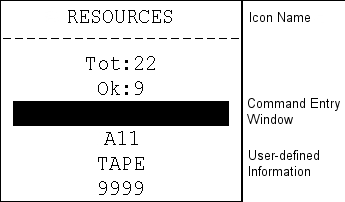
An icon may display other information (for example, the resource states).
From the graphical monitor, you can do the following:
Use the graphical monitor to get a high level view of the monitored resources. If an icon indicates a failure, issue the Z command from the icon command entry window to access the icon components and find the problem.
Zooming to the Status Monitor
If the icon is associated directly with a list of resources, the Monitor panel is displayed. This panel contains only those resources defined to the selected icon.
Use the Monitor panel to check the status of resources to see which resources are causing the problem. You can then perform status monitor actions, access the logs, or issue line commands to locate the source of the problem.
Zooming to an Icon Panel
If the icon is associated with a panel, the panel is displayed. This panel contains icons that are subsets of the main icon. For example, the icon containing all resources in EASTTEST may change to red, indicating a problem. You can zoom to the next panel of icons to see which icon has caused the main icon to change color. Select any icons that have changed state to see which resources are causing the problem. When you display the monitor, the status of the individual resources appears.
You can enter line commands in the command entry field of an icon that directly represents a group of resources (that is, an icon that is not pointing to another icon panel). To list commonly used commands, enter ?; to list all available commands, enter ??.
A command acts on all the members of the group.
When you use a command on a group, a Confirm Command panel may appear (depending on a setting in the DISPLAYS region parameter group).
The panel advises you of the number of members in the group. You can:
When you access the graphical monitor, the type of information available is determined by your default icon panel.
To change the panel
A Profile panel appears. This panel contains a field that enables you to change your default icon panel for the monitor.
A list of available panels appears.
Note: If you want to view a different icon panel temporarily, use the F5 (Panel) function key or the PANEL command.
| Copyright © 2012 CA. All rights reserved. |
|