

|
|
|
When you first start the region, Express Setup discovers and defines the IP nodes known to your system at that time in a system image. You can monitor and act on these nodes from the IP Node Monitor. You can enter the /IPNODE shortcut to access the monitor. As you learn more about the IP network, you can refine the existing nodes or add nodes to provide more targeted monitoring.
An IP node definition belongs to a monitor group that specifies the performance attributes to monitor. You can refine the monitoring for a node by attaching it to a different monitor group or modifying the existing group definition (which affects all nodes belongs to the group). As with IP resources, you can restrict the monitoring of an IP node to specific times.
From the IP Node Monitor, you can use the DB line command to refine nodes or the F4 (Add) function key to add nodes.
You can add or modify monitor groups from the IP Node Monitor Group List. You can enter the /IPMONG shortcut to access the menu. You can also modify an attached group directly from the node definition.
Example: IP Node Monitor
This example shows monitored IP nodes. The color reflects the status of a node.
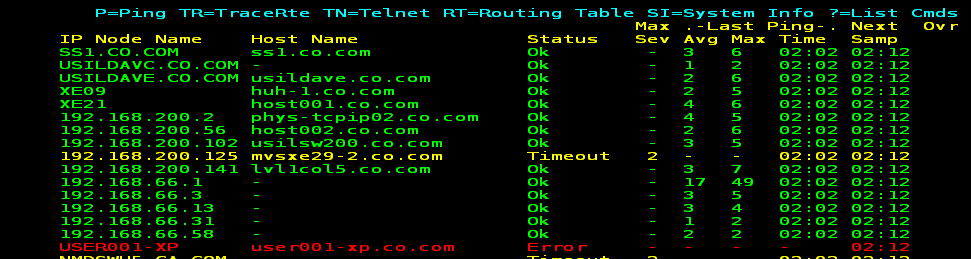
You can press F11 (Right) to display more node information. You can enter a question mark (?) next to a node to list the commands you can issue. For example, you can use PT (Activate Packet Trace) to trace packets.
| Copyright © 2012 CA. All rights reserved. |
|