Managing the ReportCenter Java Task › Change Report Logo and Heading Text
Change Report Logo and Heading Text
When you run a report, the report has the following heading text:
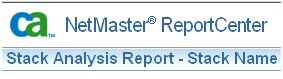
If you want, you can change the report logo and heading text.
To change the report logo and heading text
- From your browser home page, select Tools, Internet Options.
The Internet Options dialog appears.
- Click Delete Files.
The Delete Files dialog appears.
- Select Delete all Offline Content, and click OK.
- Stop your ReportCenter Java Task.
- To change the heading text, create a file named usr_heading.txt and enter your heading text.
- To change the report logo, create a file named usr_logo and insert the report logo that you want to use.
Note: The file must be in .png, .gif, or .jpg format. The default report logo size is 57 x 38 pixels. We recommend a size close to the default.
- FTP the files that you have created to the ...\usr\adaptor directory. Transfer the heading text in ASCII format and the logo in BINARY format.
- Start your ReportCenter Java Task.
- Run a report to verify that your new heading text and report logo appear.
Notes:
- When you change the report logo, it appears on all reports, even those run previously with another logo.
- When you change the heading text, it appears on all reports created after the change. Reports created previously retain the old heading text.
- If you disable the usr_logo function and then view the report that you generated when the logo function was in use, a red icon appears indicating that the logo cannot be found. The logo does not default to the supplied CA logo.
Change Font Appearance
If you want to change the appearance of the heading text, you can use standard html tags.
Example: Change Font Appearance
This example shows the heading text, Happy Holidays in Comic Sans MS font, in purple:

To produce this heading, enter the following in the usr_heading.txt file:
<p class=MsoNormal>
  <b style='mso-bidi-font-weight:normal'>
   <span style='font-size:72.0pt;font-family:Comic Sans MS;color:#993366'> Happy Holidays</span>
  </b>
</p>
Note: If you use a font that is not installed on a client PC or browser, a default font is used.
Display Default Logo and Heading
If you change the default logo and heading, and want to revert to the standard logo and heading, rename or delete the usr_logo and usr_heading.txt files.
To display the default logo and heading
- From your browser home page, select Tools, Internet Options.
The Internet Options dialog appears.
- Click Delete Files.
The Delete Files dialog appears.
- Select Delete all Offline Content, and click OK.
- Stop your java started task.
- (Optional) Delete or rename the usr_heading.txt file.
- (Optional) Delete or rename the usr_logo file.
- Start your java started task.
- Run a report to verify that the default text and logo appear.
Notes:
- When you change the logo, it appears on all reports, even those run previously with another logo.
- When you change the heading text, it appears on all reports created after the change. Reports created previously retain the old heading text.
|
Copyright © 2012 CA.
All rights reserved.
|
|

