

|
|
|
As you monitor file transfer applications, you can monitor and act on FTSCHD-class file transfer schedule resources in a loaded system image from the File Transfer Resource Monitor.
The File Transfer Resource Monitor lets you monitor defined resources individually. If you have a large number of logically related resources, you can use the graphical monitor to monitor them as a group. The monitor presents the status of resources in icons on icon panels. The status of the group icon reflects the status of the underlying resources. You can have multiple groups, each consisting of logically related resources. You customize the graphical monitor to suit your requirements through its Administration Menu panel, which you access using the /GADMIN panel shortcut.
Note: For information about how to customize the graphical monitor, see the Administration Guide.
Example: Graphical Monitor
You have SLAs with two customers to provide reports on client data. To satisfy the SLA for each customer, you want to ensure that client data is received from and reports sent to the customer on time. You determine that a number of file transfer schedules must be completed and define file transfer schedule monitor resources for them. You then customize the graphical monitor using the following structure:
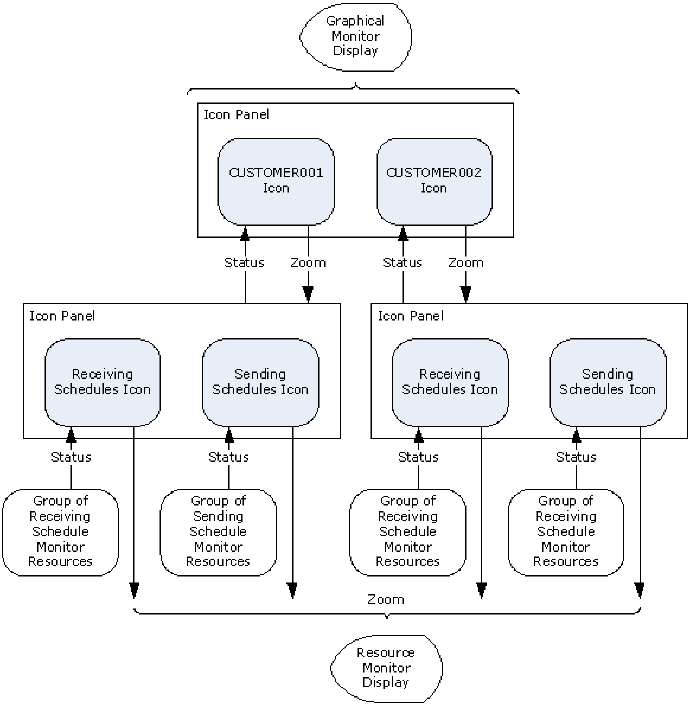
The status of the schedule monitor resources is passed to the graphical monitor. If a customer icon shows a problem, you can zoom into the schedule icons to determine whether the problem is with the receiving or sending of files. If, for example, there is a problem with receiving, you can zoom into the individual schedule monitor resources represented by the icon and determine which schedule is causing the problem.
The following example shows an entry panel. It shows four schedules associated with each customer and that they are currently in the OK state. Each icon provides a command entry field where you can enter the Z (Zoom) command.

| Copyright © 2008 CA. All rights reserved. |
|