

Generating Batch Reports › Create Spreadsheet Reports › Download the Spreadsheet Converter for Microsoft Excel 2007 › Install the Spreadsheet Converter Add-In
Install the Spreadsheet Converter Add-In
After the Spreadsheet Converter Add-In is downloaded to your PC, it must be installed. See your Microsoft Excel documentation for information, if necessary.
- Open Microsoft Excel (Office2007 or later).
- Click the Office Button in the upper-left corner of the screen.
- Cick Excel Options on the bottom of the drop-down list.
The Excel Options dialog opens.
- Click the Add-Ins menu item in the left pane.
The View and manage Microsoft Office add-ins dialog displays in the right pane.
- Click the Manage drop-down list at the bottom of the pane, highlight Excel Add-Ins, and click Go.
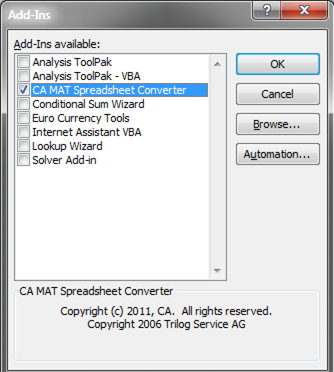
The Add-Ins dialog opens.
- Click Browse and navigate to the directory where you installed the Spreadsheet Converter Add-In, and select TUNSSC.XLA.
- Click OK.
The CA MAT Spreadsheet Converter is included in the list of Add-Ins .
- Click OK.
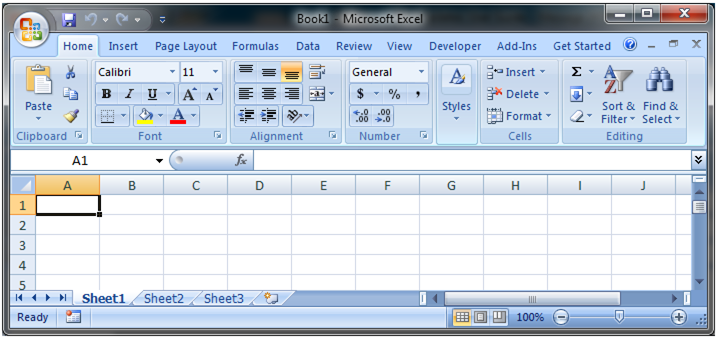
The Add-Ins selection is included on the menu bar.
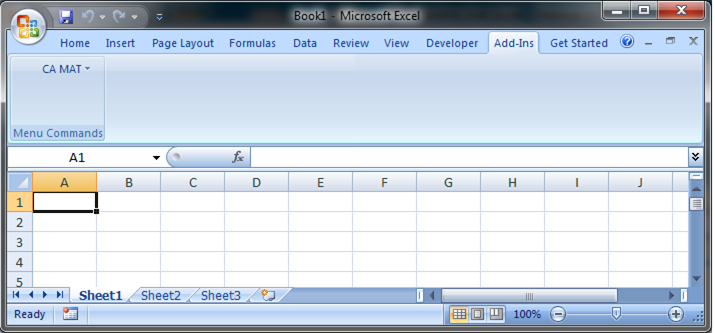
- Click the Add-Ins menu item.
The CA MAT custom command item opens.
Copyright © 2012 CA Technologies.
All rights reserved.
|
|