

Installing Your Product Using CA MSM › Setting System Registry › Change a System Registry › Failed Validations › Investigate a Failed Validation Using Task Output Browser
Investigate a Failed Validation Using Task Output Browser
You can investigate a failed validation, make corrections, and validate it again.
Follow these steps:
- On the System Registry tab, in the column on the left, find the system with a validation status error and make a note of it.
- Click the Tasks tab and then click Task History.
- At the Show bar, select All task, or My task to list the tasks by Owner.
Note: You can refine the task list by entering USER ID, types, and status.
- Find the failed validation and click the link in the Name column.

The Validate System Task Output Browser appears.
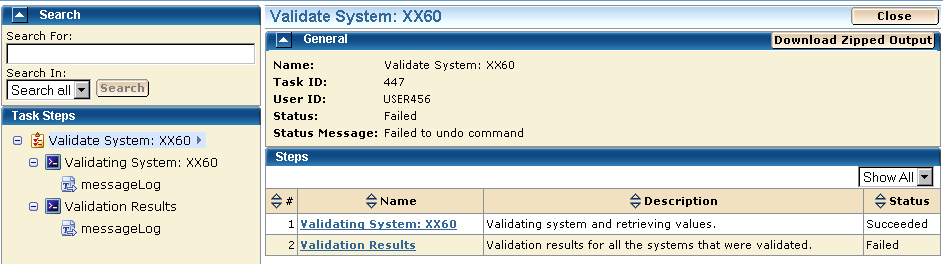
- Click the Validation Results link to view the results.
- Click the messages log to review the details for each error.
Note: You can analyze the error results and can determine the steps that are required to troubleshoot them.
- Correct the issue and validate again.
Copyright © 2010 CA.
All rights reserved.
|
|