

|
|
|
Use the comprehensive Enterprise Discovery (IP Discovery) feature to easily identify your entire network. Depending on your requirements and the size of your enterprise, you can adjust Enterprise Discovery to run on a single network segment or over the entire enterprise. You can even schedule Enterprise Discovery to run at a certain time on a specific day.
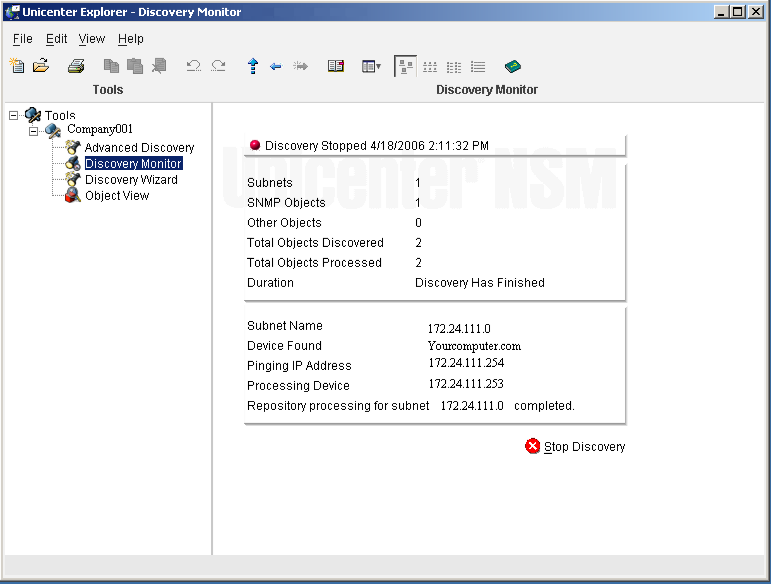
IP Discover does the following:
The Discovery Monitor keeps you apprised of the Discovery process.
Whether your world is several machines used for word processing in an office or a global network of PCs, servers, routers, and sophisticated applications and business processes, you can explore it in the Real World Interface, WorldView.
WorldView consists of the 3D Map (with enhanced rendering and animation), 2D Map, and Association Browser. These components offer a complete and authentic view of your business.
WorldView objects are displayed as bitmaps representing objects in the 2D Map view. The state of an object (normal to critical) is represented using various colors so you can immediately recognize its severity. By default, a red object indicates a critical state while a green object indicates a normal state. Parent objects dissolve into child objects, and the child object size and positioning information remains associated with the parent object. Linked objects carry properties, as with other objects.
Tip: You can instruct the Installation Wizard to place sample data in the WorldView repository (also known as the Common Object Repository). Simply click the Fill Sample Data in Repository check box on the Repository Settings tab of the Database Selection, Creation, and Configuration dialog. The sample data lets you start looking at the various features without discovering your network. However, if you do not discover your network, you cannot manage it.
| Copyright © 2012 CA. All rights reserved. | Tell Technical Publications how we can improve this information |