

|
|
|
When you start the Motif interface to the manager, load the jobs you want to work with. After you select them and click OK, the jobs are displayed in the Graphical Display window and the Linear Display window.
You can select your own jobs and also jobs that belong to other users. You must have READ access to select a job. You must have WRITE access to modify a job. For more information about READ and WRITE privileges, see Privileges Needed to Use Job Management Manager in the chapter "An Overview of Job Management Manager."
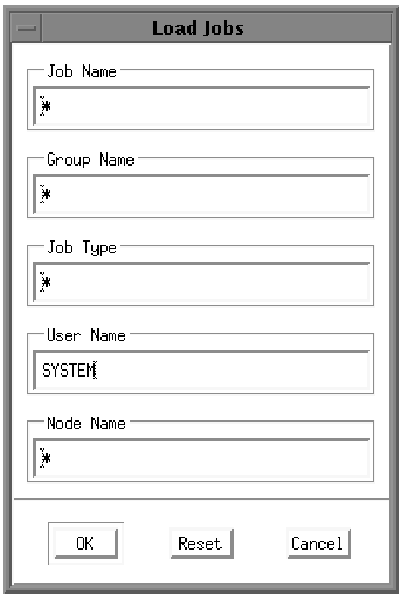
The following figure shows the Load Jobs dialog; the table following the figure describes the fields in this dialog.
|
Field |
Description |
|---|---|
|
Job Name |
The name of a job. Example: JOB_DAILY |
|
Group Name |
The name of a group of jobs. Example: DAILY_BACKUPS |
|
Job Type |
The name of a type of job. Example: FRIDAYS |
|
User Name |
The name of the owner of the jobs. Example: JONES Your user name is automatically entered in this field when you first access the manager, but you can change the user name to match that of the jobs you want to display. |
|
Node Name |
The name of a node within a cluster on which the jobs are restricted to run. Use this field when you want to display jobs that are restricted to running on a specific node. |
To select the jobs you want to display:
The Load Jobs dialog is displayed.
Characters appear in the field as you type.
The Load Jobs dialog is removed, and the jobs that match the criteria you specified are displayed in Display windows.
| Copyright © 2012 CA. All rights reserved. | Tell Technical Publications how we can improve this information |