

This section contains the following topics:
Access Online Technical Support
Product Releases and Maintenance
Refer to the following flowchart for a summary of the procedures you should follow if you have a problem with a CA software product.
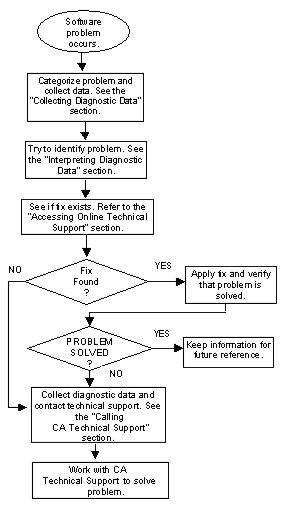
In the following table, use the left column to categorize the problem your site has encountered. Then, follow the instructions in the corresponding right column to generate useful diagnostic data.
|
Type of Problem |
Procedure |
|---|---|
|
Installation |
Refer to the installation information in this guide. |
|
User-initiated functions |
Check the TSO user or CA Roscoe job log. Try to reproduce the problem. For ABENDs that occur under the Foreground option, use the following procedure to determine the load module, CSECT, and offset where the ABEND occurred: Next to the Initial commands ==> field is an unmarked input field. Place an uppercase Y in this field. This tells the application that this is a test of the debugger, not the application being invoked, so that no ESTAEs are issued. This Y flag is used when taking SYSMDUMPS. Batch link clients will need to pass the TEST option in INT1OPTS. Clients using LE/370 will also need to pass the option '/TRAP(OFF)' in both foreground and batch link testing. |
|
System or operator functions |
Collect the dump or screen print, if appropriate. |
|
Incorrect Output Errors |
For incorrect output, try to record all relevant information (such as command name, panel displayed, testing IMS program, and so on) before calling Technical Support. It is very useful to have a hard copy of the erroneous screens. |
|
|
Often, to recreate this type of problem, an IEBCOPY of the application load libraries, an unload of the PROTSYM, and the ALIB used to perform the allocations is required. Screen shots starting with the Execution Control panel up to the erroneous screen are also helpful. |
When you have collected the specified diagnostic data, write down your answers to the following questions:
From your response to these questions and the diagnostic data, try to identify the cause and resolve the problem.
CA SupportConnect is an interactive access to CA product support information through the Internet. Using online SupportConnect, you can:
The following are the requirements to use all of the SupportConnect functions:
To access SupportConnect, go to http://www.ca.com/supportconnect. When you have reached the SupportConnect page, select the option desired. If the option chosen requires you to log in, then do so.
To get a login ID to use all the technical support online functions at SupportConnect:
Many CA software solutions use license keys or authorization codes to validate your hardware configuration. If you need assistance obtaining a license key or authorization code, contact the CA‑TLC: Total License Care group at 1-800-338-6720.
CA provides telephone support for all its products. The CA Product Support Directory lists each CA product and the telephone number to call for primary support for that product. To access the CA Product Support Directory list online, go to the SupportConnect page and select the CA Product Support Directory link (under 'Support Resources and Contact Information …'). This option provides contacts for both North America and outside North America.
The CA Product Support Directory page provides instructions on how to contact the support center for your product and the service hours they are available.
Note: Only your local CA Support Center can provide native language assistance. Please use English when contacting any North American center.
If you are unable to resolve the problem, have the following information ready before contacting CA Technical Support:
New users of the product are provided with a distribution tape containing the current version of the system. Clients are requested to operate only under currently supported releases of this product.
A complete set of documentation is available through Support Connect, http://www.ca.com/supportconnect. The online guides eliminate the need to update pages throughout hard copy documentation and provide the most current information in a timely manner.
Clients with current maintenance agreements also receive ongoing product maintenance. When a new release or service pack of the system is available, a notice is sent to all current CA InterTest™ Batch clients. An announcement is also posted on the CA InterTest™ Batch page on our support website.
CA welcomes your suggestions for product enhancements.
All suggestions are considered and acknowledged. You can access the CA Support Connect internet site to open an issue for your enhancement request. For more details, see Accessing Online Technical Support.
|
Copyright © 2013 CA.
All rights reserved.
|
|