

CA IdentityMinder reports enable you to see the current state of a CA IdentityMinder environment. You can use this information to ensure compliance with internal business policies or external regulations.
You generate CA IdentityMinder reports from management data which describes the relationship between objects in CA IdentityMinder environment. Examples of management data include the following:
In CA IdentityMinder, the reporting setup requires the following three major components:
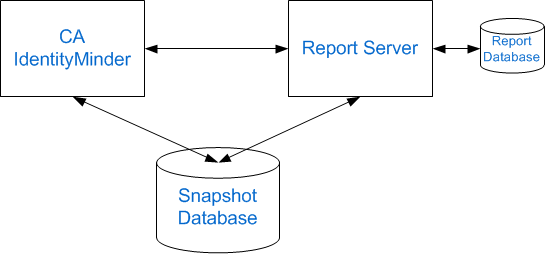
Note: The Snapshot Database in this illustration graphic could also be the Audit Database or Workflow Database.
Also known as CA Business Intelligence, this server generates reports, communicating directly with CA IdentityMinder and the Snapshot Database.
The database where the CA Report Server (Business Objects) stores its own data.
CA IdentityMinder allows you to export CA IdentityMinder object data to the Report Database.
A separate database containing the snapshot data of objects in CA IdentityMinder
Important! The Report Server uses Business Objects Enterprise. If you already have a Report Server in your environment and want to use it with CA IdentityMinder, the minimum version required by CA IdentityMinder is CA Business Intelligence 3.2 SP5.
A snapshot report include data from the Snapshot Database, which contains information from the CA IdentityMinder object store and the user store. An example of a snapshot report is the User Profile report. You define the snapshot data that is added to the Snapshot Database and using snapshot definitions, specify the information to include.
The following graphic illustrates the process for running a snapshot report:
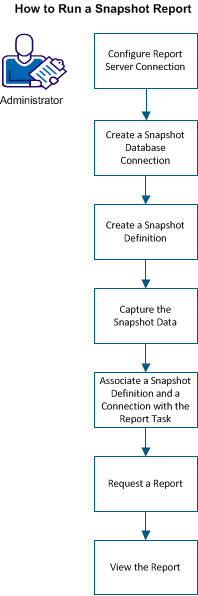
To run the snapshot report, perform the following steps:
|
Copyright © 2013 CA.
All rights reserved.
|
|