

This section contains the following topics:
Log In to CA IAM Connector Server
Start and Stop CA IAM Connector Server
Logging for CA IAM Connector Server
Change the Administrator Password for CA IAM Connector Server
Connect to CA IAM Connector Server from JXplorer
Find the Version of CA IAM Connector Server
You can use a web browser to log on to CA IAM Connector Server from any computer, using details that you specified during installation.
Use the following URL:
http://hostname:port
Specifies the name of the computer running CA IAM Connector Server, as a fully qualified domain name
Specifies the HTTP or HTTPS port that was set during installation.
Example URLs for CA IAM Connector Server
http://myserver.mycompany.org:20080
https://myserver.mycompany.org:20443
You can start and stop CA IAM Connector Server using the following methods.
Use the following commands to start, restart, and stop the daemon:
/etc/init.d/im_jcs start
/etc/init.d/im_jcs restart
/etc/init.d/im_jcs stop
Use the following command to display the status of the daemon:
/etc/init.d/im_jcs status
net start im_jcs
net stop im_jcs
You can see log files for the following components:
You can view a log by reading a text file, or through a web browser.
To see the 500 most recent log messages, log in to CA IAM Connector Server, and click the Logs tab.
To see an entire log, open one of the following files from cs_home\jcs\logs:
|
Log File Name |
Description |
|---|---|
|
jcs_daily.log |
Today's logging from CA IAM Connector Server. These messages are also displayed in the Logs tab. |
|
jcs_daily.log.YYYYMMDD |
jcs_daily.log for a particular date |
|
servicemix.log |
All the content from the jcs_daily.log, plus some additional messages from ServiceMix. ServiceMix is the toolkit with which CA IAM Connector Server was created. |
|
servicemix.log.YYYYMMDD |
servicemix.log for a particular date |
|
endpoint-type/jcs_conn_connector-name.log |
Logging for a connector |
|
endpoint-type/jcs_conn_connector-name.log.YYYYMMDD |
Logging for a connector for a particular date |
When you are trying to identify a fault, we recommend that you start with jcs_daily* files and work downwards to the connector-specific log files.
The jcs_daily.log and servicemix.log files that are listed in View a Log are configured in a text file. You can modify the file to change the following aspects of logging:
By default, the logging configuration is minimal, so that performance is not reduced.
If you find a problem with a connector or CA IAM Connector Server, contact CA Support. Before you send your logs to the support team, we recommend that you configure the logging to capture detailed information.
Follow these steps:
cs_home/etc/org.ops4j.pax.logging.cfg
Note: You can also edit org.ops4j.pax.logging.cfg in a text editor.
Each endpoint type has a configuration file that defines its logging. You can configure the logging for a particular connector by sending LDAP commands to CA IAM Connector Server.
The endpoint log files contain most of the logging data for the relevant connector. However, also look for relevant logging in the jcs_daily.log* systemwide log file. Messages can be logged to the systemwide file for the following reasons:
Follow these steps:
eTDYNDirectoryName=${CONN},eTNamespaceName=${CONN_TYPE},dc=${DOMAIN},dc=etasa
You can enable and configure logging by changing the attributes of this entry.
Use the following severity codes:
|
Logging Level |
Severity in Provisioning Server |
Severity Code in Provisioning Server |
|---|---|---|
|
DEBUG |
Information |
I |
|
INFO |
Non-Admin Success |
S |
|
WARN |
Warning |
W |
|
ERROR |
Error |
E |
|
FATAL |
Fatal |
F |
When you log in to CA IAM Connector Server to view log messages, you can see only the 500 most recent messages. These messages are kept in memory, which is why so few can be seen.
You can filter which messages are shown on the Logs tab, using the options under the Logs heading. These filters apply to the 500 most recent messages. They do not change the way that CA IAM Connector Server records log messages.
You can configure the page to display more or fewer messages.
Follow these steps:
cs_home/etc/org.apache.karaf.log.cfg
size = 500
Note: If you set the size too high, CA IAM Connector Server becomes slower.
All log messages include the following information:
The timestamp on the local host when the message was logged. The date and time use ISO8601 format.
The number of milliseconds elapsed since the server started.
The thread that logged the message, for example [Timer-1].
The bundle that contains the executed code, the class from which the message came, and the line number (if this number is available). This section uses the following format:
(bundle-name:class-name:line)
For example:
(com.ca.jcs.core:com.ca.jcs.osgi.listener.ImplBundleServiceListener:123)
The severity of the message:
The actual log message.
To ensure better security across a deployment you can change the password of the administrative user of CA IAM Connector Server.
CA IAM Connector Server remembers all passwords for all users since it was last restarted. All of these passwords are accepted as valid for bind requests. Each user can reset only their own cache.
The cache of old passwords is useful for a system where many applications connect to one connector server. In this situation, the applications may not update their stored passwords for CA IAM Connector Server at the same time, but they can still access the connector server.
However, these old passwords make your system potentially insecure. To make the connector server forget the old passwords, clear the password cache. To clear a password cache, you must be logged in as that user.
Follow these steps:
The following example shows the menu for a user named admin:
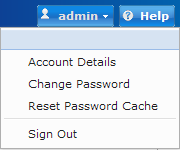
You can use the following parameters to connect to CA IAM Connector Server from an LDAP browser such as JXplorer.
These settings are configured in server_osgi_jcs.xml. Changing the User DN is problematic because of assumptions within ApacheDS. To avoid problems, server_osgi_jcs.xml includes the property java.naming.security.principal.alias. This property simulates use of a different user DN, as an alias to "uid=admin,ou=system".
Specifies the host server name of CA IAM Connector Server
LDAP v3
Default port number: 20411, when using level: SSL + User + Password (TLS)
20410, when using the less safe level: User + Password
uid=admin,ou=system
As configured during installation.
Note: For more information on JXplorer, see http://www.jxplorer.org.
To determine the version of your CA IAM Connector Server installation, look in the following file:
cs_home/version.properties
|
Copyright © 2015 CA Technologies.
All rights reserved.
|
|