

There are two stages to creating a policy set off by duplicate network addresses.
To set up a query
The Select Target dialog appears.
The Query Designer dialog appears.
The Add Argument dialog appears.
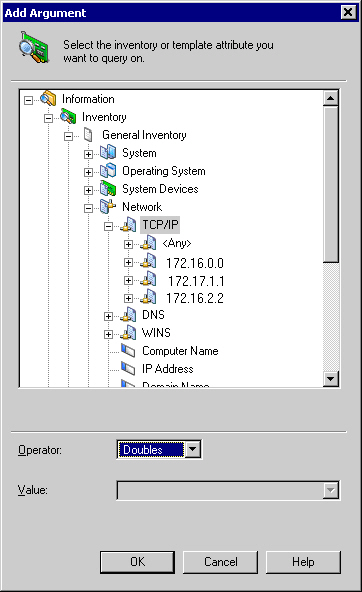
You have to create a policy based on the above query.
To setup a policy
The Policy Designer dialog appears.
This policy is triggered whenever a user tries to specify a duplicate IP address in the network and performs the actions specified.
You can create an event based policy to trigger an action when applications are installed or uninstalled on the asset management agent computers.
Note: If you want to track both installation and uninstallation, you must create two different policies.
Note: The Asset software policy gets triggered only if the software is installed or uninstalled using software jobs and the software has a related software definition in CA ITCM.
To track the installation or uninstallation of applications
The Policy Designer dialog appears.
The Software pane appears.
Tracks the installation or uninstallation of all the applications.
Tracks the installation or uninstallation of a specific application. You can select the application you want to track from the drop-down list.
The policy is saved.
|
Copyright © 2013 CA.
All rights reserved.
|
|