

To install WebSphere Application Server Version 6.1
install.exe
The IBM WebSphere Application Server install wizard begins.
If the prerequisites check result is Failed, install the required operating system patches/fixes to ensure that the system is ready for setup.
Note: BusinessObjects Enterprise does not allow its application to be deployed on WebSphere if administrative security is not enabled.
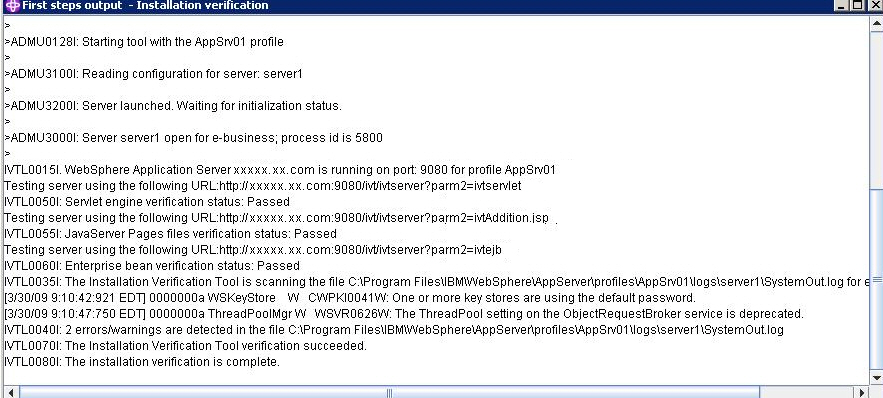
Once the installation is complete, the First steps utility displays.
The result of the install verification displays as follows:
Once the install is complete, you must upgrade from WebSphere version 6.1 to 6.1.0.7. To upgrade the existing WebSphere with Fix Pack 7, the upgrade installer must be installed on the computer (see the following section).
By default, the profile is created with the name server1. You can use the same profile or you can create another profile for BusinessObjects Enterprise application deployment.
|
Copyright © 2010 CA.
All rights reserved.
|
|