

The Existing CMS Database Information for Upgrade screen allows you to specify the existing CMS database that you want to copy the data from.
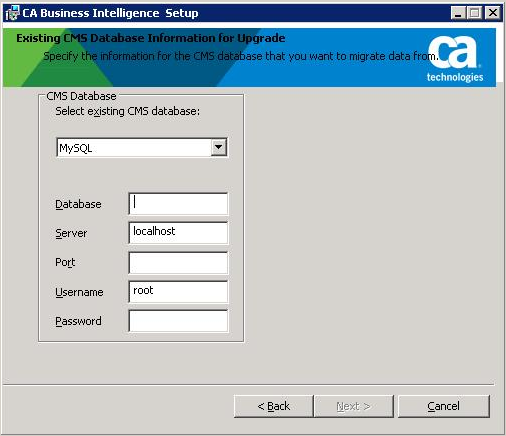
Important! The information you enter on this screen is not verified by the BusinessObjects Enterprise installer. Incorrect information can lead to upgrade failure. Take extreme care to verify that the values entered on this screen are correct.
To specify the existing database
If you are copying data from:
SQL Server:
a. From the CMS Database list, select SQL Server (ODBC).
b. Click the Browse tab.
c. Select the Data Source Name.
d. Enter the Login ID and Password for the database, select the database, then click Next.
Oracle:
a. From the CMS Database list, select Oracle.
b. Enter the Oracle tnsnames connect identifier in the Server field.
c. Enter the credentials for the server in the Username and Password fields, then click Next.
DB2:
a. From the CMS Database list, select DB2.
b. Enter the DB2 database alias in the Server field.
c. Enter the credentials for the server in the Username and Password fields, then click Next .
MySQL:
a. From the CMS Database list, select MySQL.
b. Enter the name of the database in the Database field.
c. Enter localhost as the host name in the Server field.
Note: The Host name specified should not be your host name, or the IP address of the host.
d. Enter the port that the database uses in the Port field
e. Enter the credentials for the server in the Username and Password fields, then click Next.
Note: If you are migrating from a version of MySQL that was previously installed by BusinessObjects Enterprise, the Username that you should use is root (not the name that you see in the DSN).
Sybase:
a. From the CMS Database list, select Sybase.
b. Enter the Sybase Server Name in the Server field.
c. Enter the credentials for the server in the Username and Password fields, then click Next.
The Install Type screen displays.
|
Copyright © 2010 CA.
All rights reserved.
|
|