

Screen components
Each CA OLQ screen has:
                      CA, Inc.
     CA OLQ Release nn.n                               *** Menu ***
 ->                                                      Page     1  Of      3
107017 CA OLQ Release nn.n
107019 Copyright(C) 2003 CA,Inc.
        Select                                              Command/       Show/
 Pfkey  Option  Description                                Screen Name     Help

                --->  Data Source for Report  <---
          X     Choose tables                              TABle             _
 PF2      _     Choose subschema                           SUBschema         _

                --->  Retrieval Activity  <---
          _     Choose records from selected subschema     RECord            _
          _     Choose columns for report                  COLumn            _
          _     Retrieve data to build report              RETrieve          _
          _     Alter database access strategy             LINkage           _

                --->  Processing Mode  <---
          _     Execute or create a predefined routine     QFIle             _
          _     View existing or save current report       SAVe              _
                Submit batch report request                BATch             _

 1=HELP         3=QUIT         4=MESSAGE         5=GLOBAL HELP         8=FWD
How to use the screens
To select a screen option, type any character (except a blank, underscore, or d) on the line next to the option listing and press [Enter].
For example, to select the EMPLOYEE record from the Record Select screen, type a character on the line next to the EMPLOYEE option and press [Enter].
     CA OLQ Release nn.n                          *** Record Select ***
     ->                                                 Page     1of 1
123000 Select records and press the ENTER key

                        Records currently selected:    0
   Enter records :

 -and/or-
   Select records :
 _  COVERAGE
 _  DENTAL-CLAIM
 _  DEPARTMENT
 x  EMPLOYEE
 _  EMPOSITION
 _  EXPERTISE
 _  HOSPITAL-CLAIM
 _  INSURANCE-PLAN
 _  JOB
 _  NON-HOSP-CLAIM
 _  OFFICE
 _  SKILL
 _  STRUCTURE

 1=HELP          3=QUIT          4=MESSAGE          6=MENU          PA2=REFRESH
To get to another menu screen, type the command for that screen in the command line and press [Enter].
For example, to get to the Menu screen, type MENU in the command line of any menu facility screen and press [Enter].
     CA OLQ Release nn.n                          *** Display Report ***
 -> menu                                                  Page     1 Line     1
125000 Press the ENTER key to go to the next page of the report.

                           EMPLOYEE/EMPOSITION REPORT
                                    mm/dd/yy

      LAST         FIRST                SALARY         SALARY          BONUS
      NAME         NAME     START       GRADE          AMOUNT         PERCENT
 --------------- ---------- ----- -- -- ------ ---------------------- -------
 TERNER          NANCY         05 26 82     11               13000.00    .004
 JOHNSON         CYNTHIA       03 23 77     11               13500.00    .004
                                                          -----------
                                               AVE FOR 11:   13250.00

 NICEMAN         BRIAN         05 06 80     12               14000.00    .004
 GARDNER         ROBIN         06 15 81     12               14000.00    .004
 KING            DORIS         08 16 80     12               14500.00    .004
                                                          -----------
                                               AVE FOR 12:   14166.66


                                      - 1 -
 1=HELP     3=QUIT     4=MESSAGE     6=MENU     8=FWD     10=LEFT     11=RIGHT
To specify syntax on your screen, enter the syntax statement next to the prompt on the screen.
For example, to specify a COMPUTE statement, enter the statement next to the Compute prompt.
     CA OLQ Release nn.n                           *** Report Format - Sort ***
 ->                                                       Page     1 of     2
133000 Specify sort or group by request and press the ENTER key

                                           Disp      Sort    Order     Group By
                                           Seq     Priority  (A/D)      Level #
   EMPLOYEE
 X  EMP-FIRST-NAME-0415                     2         _        _          _
 X  EMP-LAST-NAME-0415                      1         _        _          _
 X  START-YEAR-0415                         5         _        _          _
 X  START-MONTH-0415                        3         _        _          _
 X  START-DAY-0415                          4         _        _          _
   EMPOSITION
 X  SALARY-GRADE-0420                       6         1        A          1
 X  SALARY-AMOUNT-0420                      7         _        _          _
 X  BONUS-PERCENT-0420                      8         _        _          _


           Display lines:  Detail X  and/or  Summary X       Group by all _
 Compute: compute ave-salary = ave(salary-amount-0420) group by salary-grade-042
0 having salary-grade-0420 gt 18
 1=HELP    3=QUIT    4=MESSAGE    5=DISPLAY    6=MENU    8=FWD    11=HEADER
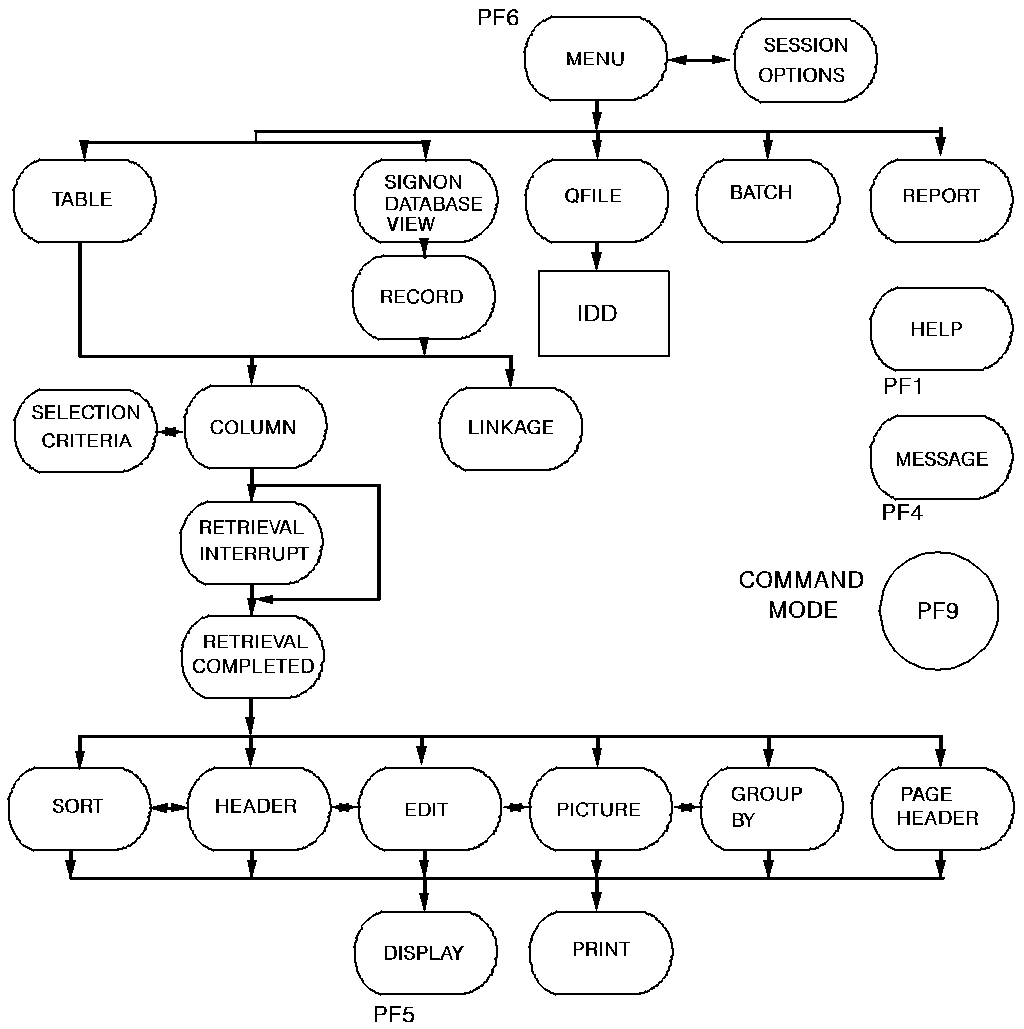
An Overview of CA OLQ screens:
|
Copyright © 2013 CA.
All rights reserved.
|
|