

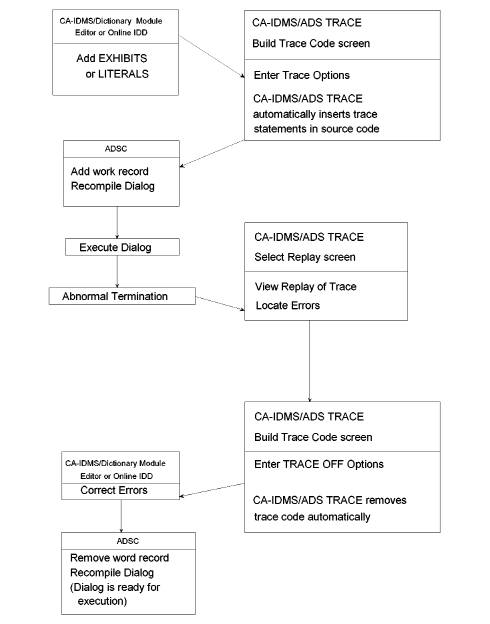
In a typical session, a programmer might be trying to debug a dialog that terminates abnormally when executed. The sequence of events shown in Figure 1.1 illustrates a session where the programmer uses CA ADS Trace to help find the errors in a dialog that terminated abnormally.
The programmer wants to see the values of designated elements exhibited when the trace is replayed, and also wants special literal statements displayed in the replay for quick reference. The programmer can add exhibit and literal statements to the code before accessing CA ADS Trace by using CA IDMS DME
When CA ADS Trace is accessed in the typical session described here, the first choice is Build Trace Code. On the Build Trace Code screen, the programmer names the dialog and selects the trace options.
When the options have been entered, the system begins automatically placing trace code in the dialog. A confirmation message in the message area signals that the trace code has been built. After the trace code is in the dialog, the programmer adds a special work record to the dialog, and then recompiles and executes it.
When the execution has terminated (in this example, abnormally), a replay of the trace is ready and is listed on the Select Replay screen of CA ADS Trace. The programmer scrolls through the replay to find the cause of termination.
When a TRACE OFF option is entered on the Build Trace Code screen, CA ADS Trace automatically removes the trace statements. To correct errors in the dialog, the programmer uses CA IDMS DME
The programmer must then remove the special work record from the dialog. When this step is complete, the corrected dialog is recompiled and ready for normal execution. The following figure shows a typical CA ADS Trace session.
|
Copyright © 2013 CA.
All rights reserved.
|
|