

As a Change Approver, you have a capability of approving or rejecting package / multiple packages from your mobile. Using this feature, you can quickly respond to pending change requests where deployment of those changes is not impeded by the approval process. When you receive a pending approval request in an email on your mobile, you can approve or reject packages from your mobile while you are away from your desk.
This section contains the following topics:
Using the CA Harvest SCM Mobile Application
As a Change Approver, you have capability to approve or reject packages from mobile devices. Using this feature, you can quickly respond to pending change requests to meet the business needs.
The following diagram illustrates how you can perform the following tasks using the CA Harvest SCM mobile application:
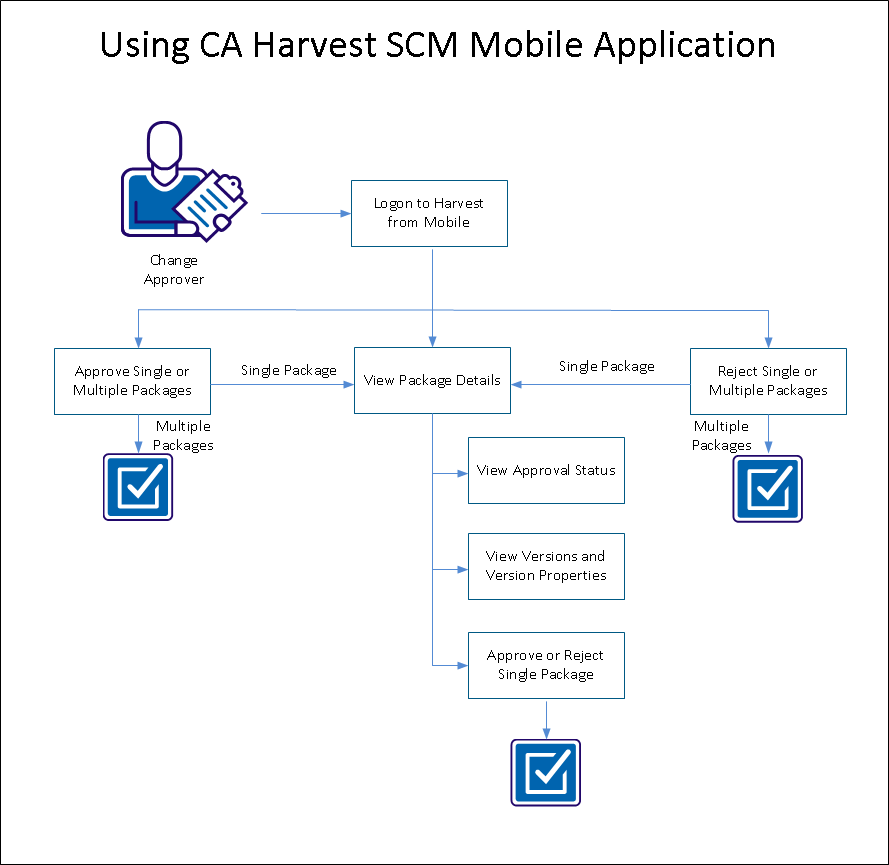
When you are notified with an email on your inbox in smart phone for Harvest change package approval request, open up the Harvest package approval request email.
Note: Access the notification URL link from the intranet. The address specified in the URL is accessible from mobile.
Tap the URL for package approval action.
The CA Harvest SCM login screen opens up in your mobile.
Provide your Harvest broker and login credentials and tap login.
As a Change Approver, you have secure capability to view multiple packages that need your approval and can take an informed decision to either approve single or multiple packages at once.
Follow these steps:
 icon.
icon.
All the listed packages are selected and the on disclosure icon  changes to a
  icon, for each of the selected packages.
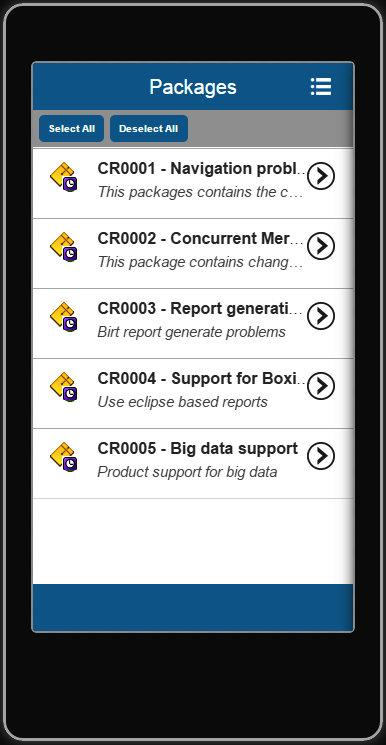
(Or)
On the Package screen, tap on a package.
The on disclosure icon changes to a icon for the selected package.
The Approve dialog opens.
The confirmation dialog displays the message confirming the same.
You may now notice that the requested package(s) have been successfully approved and the approval status is changed.
As a Change Approver, you can view the package details for each of the package that is pending for approval.
The details include the package name, project, state, assignee, my approval status, creator, creation time, modifier, modification time, and description. These package details are same that you see on the Workbench.
From the Package Details screen, you can navigate to perform the following items:
 next to the Information tab
  to see the approval details.
 and tap Versions.
and tap Approve or Reject.
and tap Versions.
and tap Approve or Reject.
A package approval involves multiple approvers depending on your setting of package approval process in Harvest project lifecycle setting.
Other than your approval, you see the other required approval statuses for a selected package. The approval status of a selected package displays the state of the package for each approver as Approved, Rejected, or Waiting.
You see the list of package associated versions.
Select one of the versions and tap the on disclosure icon to see the version properties.
The version properties include the name, parent path, project, state, stored as, status, creator, creation time, modifier, and related date time information.
As a Change Approver, you can approve or reject a package that is pending for your approval.
Follow these steps:
, and tap Approve or Reject.
The Approve or Reject dialog opens (based on your selection).
The confirmation dialog displays the message confirming the same.
You may now notice that the requested package has been successfully approved or rejected in the Information Tab screen and the Approval Status screen.
As a Change Approver, you have secure capability to view multiple packages that need your approval and can take an informed decision to either reject single or multiple packages at once.
Follow these steps:
icon.
All the listed packages are selected and the on disclosure icon changes to a icon, for each of the selected packages.
(Or)
On the Package screen, tap the on disclosure icon for a package.
The on disclosure icon changes to a icon for the selected package.
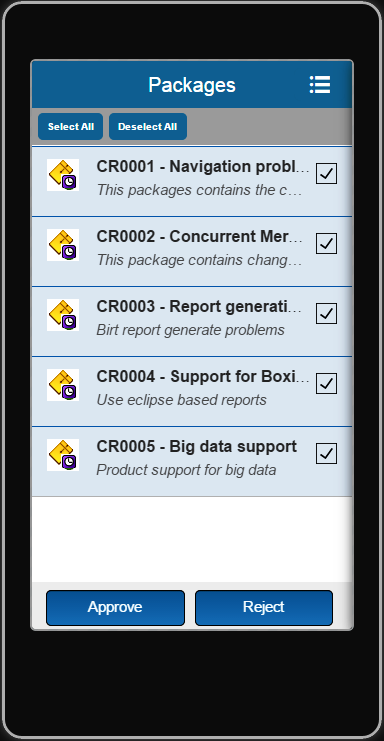
The Reject dialog opens.
The confirmation dialog displays the message confirming the same.
You may now notice that the requested package(s) have been rejected and the approval status is changed.
|
Copyright © 2015 CA Technologies.
All rights reserved.
|
|