

You can run a configuration from the Web View UI Navigator in the Web View UI Generation perspective. You can run configurations of valid objects using this procedure. Running a configuration from the Web View UI Navigator lets you generate a subset of the configuration such as an individual Action Block or a Procedure Step.
Specifies a generation configuration for an object in which the object is selected for generation.
Specifies an object in the Web View UI Navigator that has valid configurations. Any object that can be selected for generation in the Model Object Selection tab in the Generations Configuration dialog are valid for generation.
The following objects are valid to run a configuration from the Web View UI Navigator view:
Follow these steps:
Note: Use the Ctrl key to select multiple objects in Web View UI Navigator. When you use the Ctrl key to select multiple objects in the Navigator view, only the selected objects are generated including the child objects that were selected in the configuration.
A pop-up menu opens showing Generate and Generate including subordinates menu items. The model object and the packaging type object (Cooperative or Non-cooperative) in the Web View UI Navigator view display only the Generate including subordinates menu item. All the other objects in the Web View UI Navigator view display Generate and Generate including subordinates menu items.
Generates the objects that are selected in the Web View UI Navigator.
Generates the selected objects in the Web View UI Navigator along with their child objects that were selected in the configuration.
Note: If there are no valid configurations for an object, the Generate and Generate including subordinates menus display (no matching configurations)# Configuration Object Types as a sub-menu as shown in the following illustration:
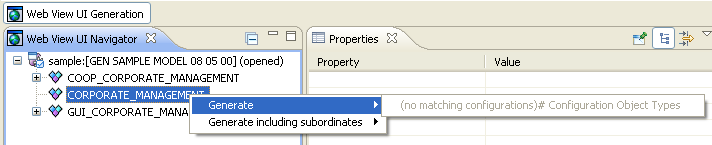
A pop-up menu opens showing only the valid configurations for that object.

If you have selected the configuration to run in the foreground, the Progress Information dialog opens showing the progress.
Note: If you click Cancel on the Progress Information dialog, the generation stops after completing the current generation step and closes the pop-up dialog.
The selected objects are generated based on the configurations. You can view the generation output messages in the Console view.
|
Copyright © 2013 CA.
All rights reserved.
|
|