Previous Topic: DesignNext Topic: Client Design


Server Design

We need to create a server procedure to support the SCORE CARD elementary processes. So in the Window Navigation Diagram we need to:

Follow these steps:

  1. Open the Window Navigation Diagram. From the Menu Bar select Diagram, Open. Open the EGOLF APPLICATION SERVER diagram. It will look similar to the image shown as follows:

    EGOLF APPLICATION SERVER diagram

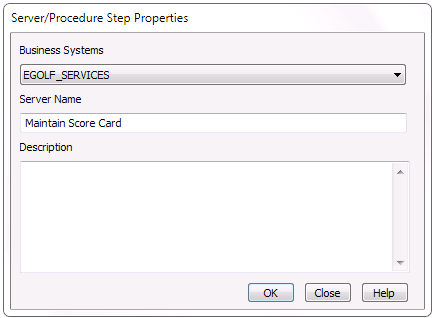
  2. Add a new server procedure step with the properties shown as follows:

    Server/Procedure Step Properties dialog

  3. The diagram should now look as follows:

    EGOLF APPLICATION SERVER diagram after a new server is being added.

  4. We now want to save this “new” diagram. From the Menu Bar select Diagram, Create Diagram. and click EGOLF_APPLICATION_SERVER from the Create Diagram dialog. Click Save and then click Yes when prompted if you want to replace it.
  5. Open the MAINTAIN SCORE CARD procedure step action diagram. It will be empty. In addition to supporting the ADD, UPDATE, and DELETE SCORE CARD processes, it needs to support displaying a score card as well. We will use Action Block Synthesis to create the READ action, then go back and modify the diagram to include the ADD, UPDATE, and DELETE elementary processes.

    While inside the empty action diagram, from the Menu Bar click Generate, Action Block Synthesis. In the Action Block Synthesis dialog select the SCORE CARD entity type. Clear the selection of the Review Default Actions and Consistency Check on Entity Types check boxes. Change the Mode to Read. The dialog will look as follows. Click OK.
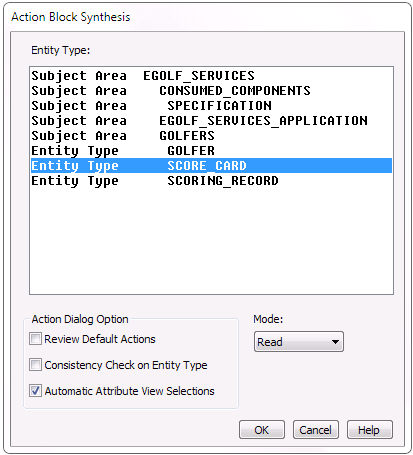
    Action Block Synthesis dialog

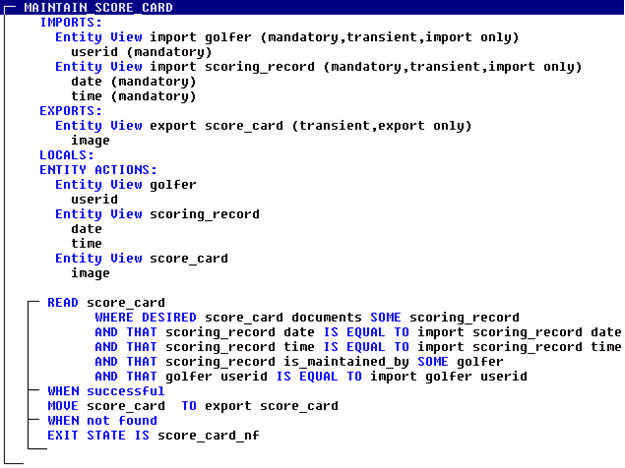
  6. Expand the views. The MAINTAIN SCORE CARD procedure step will now look as follows:

    MAINTAIN SCORE CARD Procedure Step

  7. For procedure steps, particularly maintenance type server procedure steps, we typically need the import views and export views to match. The import view contains two views that are not in the export, and the export contains one view that is not in the import. So before we add the remaining statements that this action diagram needs, we want to modify the views such that they match. So all we want to do is copy the two imports to the export and the single export view to the import, and rename them in the process.

    Click and drag the cursor over the import views highlighting both of them, select the F8 key or from the Menu Bar click Edit, Copy and select the EXPORTS: label. When prompted, in the Copy View dialog enter EXPORT for the New Names.

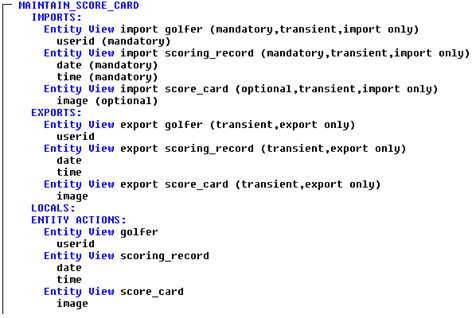
    Then do the same for the export score_card copying it to the IMPORTS views and giving it the new name IMPORT. When finished, you will have an import golfer, import scoring_record, and import score_card and an export golfer, export scoring_record, and export score_card. The diagram will look as follows.

    Note: You can move the views around (F7 key) if you would like them to match what is shown as follows:
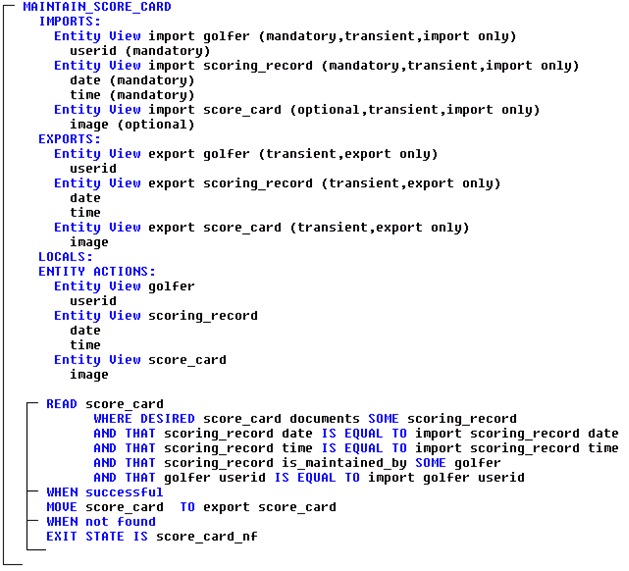
    MAINTAIN SCORE CARD With Different IMPORT Entity Views

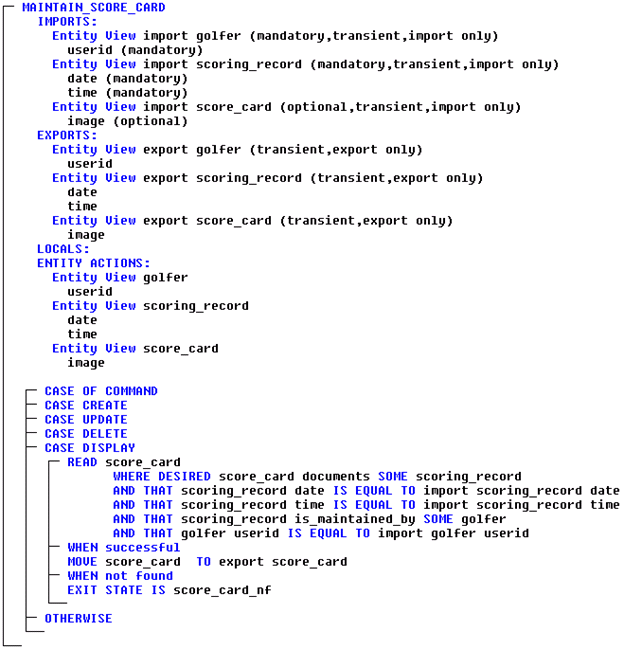
  8. Next add the CASE OF COMMAND statement to CREATE, UPDATE, DELETE, and DISPLAY the SCORE CARD. Then move the READ score_card statement to the DISPLAY section of the CASE statement. The diagram will look as follows:

    MAINTAIN SCORE CARD after adding CASE OF COMMAND Statement

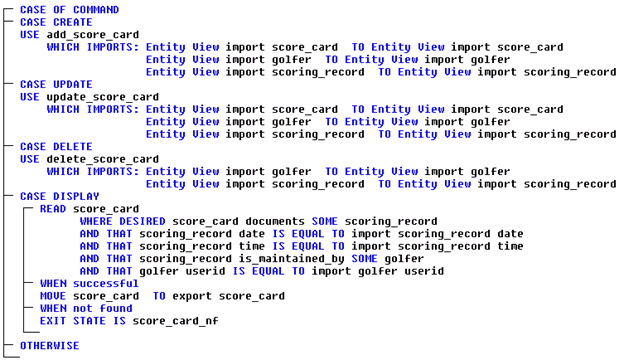
  9. Next we can add the USE statements to the ADD SCORE CARD, UPDATE SCORE CARD, and DELETE SCORE CARD elementary processes, matching the Import views of the process action diagrams to the Import views of the procedure step action diagram. The CASE OF COMMAND statement should now look as follows:

    CASE OF COMMAND Statement ater adding USE Statement

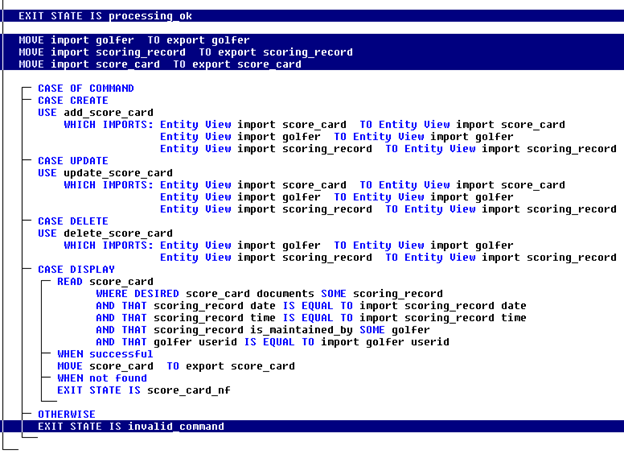
  10. There are just a few more things we need to do to finish the server procedure step. We need to set an “initializing” exit state of PROCESSING OK at the beginning of the diagram, move all import views to export views, and set an INVALID COMMAND exit state for the OTHERWISE condition on the CASE OF COMMAND statement. The completed diagram will now look as follows:

    Cpmplete MAINTAIN SCORE CARD Dialog

    Set Exit State of processing Ok

  11. Save the model.