Previous Topic: Common Format Buffer PackagingNext Topic: Windows/UNIX Transaction Enabler


Details for Configuring TCP/IP (Sockets)

To set the Comm. Bridge configuration files for TCP/IP transport:

Follow these steps:

  1. Start the Comm. Bridge and select Server, Config…
  2. At the Server Configuration dialog, enter a server name and description for this target server connection.
  3. Select Sockets from the Transport API selection list. The Comm. Bridge automatically supplies the API DLL name.
  4. Click Details to display the TCP/IP Server Configuration – Details dialog.

    The following figure shows the details dialog for socket configuration:
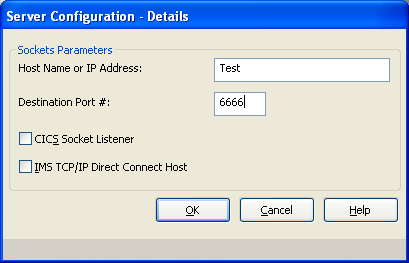
    Details for Configuring TCP/IP (Sockets)

  5. Provide the TCP/IP host and port parameters that identify the target server environment. An IP address may conform to either the IPv4 or IPv6 formats.
  6. Select one, if appropriate, of the socket connection style check boxes according to the target server environment requirements as listed below.

Target Server Environment

CICS Socket Listener check box

IMS TCP/IP Direct Connect Host check Box

Transaction Enabler (TE - Windows or UNIX)

Unchecked

Unchecked

UNIX: Tuxedo Proxy Client

Unchecked

Unchecked

z/OS CICS TCP/IP Direct Connect

Unchecked

Unchecked

EJB CFB Server

Unchecked

Unchecked

z/OS IMS TCP/IP Direct Connect

Unchecked

Checked

z/OS CICS Socket Listener

Checked

Unchecked

  1. Click OK to return to the Server Configuration dialog.
  2. Click OK from the Server Configuration dialog to return to the main window.
  3. Save the current configuration. For more information about saving configurations, see "Saving Configuration Files."