

Comm. Bridge General Configuration › Configuring Comm. Bridge Client Connections › Configuring a Client Connection for TCP/IP (Sockets)
Configuring a Client Connection for TCP/IP (Sockets)
Follow these steps:
- Start the Comm. Bridge.
- Navigate to the Client Configuration dialog. From the Comm. Bridge main GUI window, select menu item Client,Config.
The Client Configuration dialog appears.
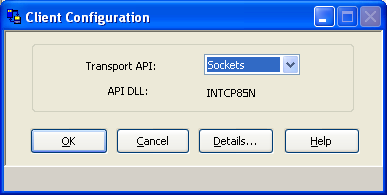
- Select Sockets from the Transport API selection list.
The Comm. Bridge automatically supplies the API DLL name.
- Click Details to display the TCP/IP communication parameters.
- Provide the TCP/IP source port number that this Comm. Bridge can advertise as its well-known port address and click OK.
- Click OK button from the Client Configuration window to return to the Comm. Bridge's main GUI window.
- Save the current configuration. For more information about saving configurations, see "Saving Configuration Files".
Note: You must restart the Comm. Bridge for the newly configured client transport parameters to take effect. The Comm. Bridge will report an error at startup time if the port chosen is already in use by another application on the workstation. When an error occurs a message box will be displayed. After pressing OK on the message box, the Comm. Bridge will continue to start. Once started the conflicting port number can be modified. The above procedure, Configuring a Client Connection for TCP/IP (Sockets), provides details for modifying the client port number.
Copyright © 2013 CA.
All rights reserved.
|
|