

You can rearrange the placement of views and editors in the Diagram Trace Utility main window anytime by dragging and dropping the view to dock (or place) it in a different location.
Follow these steps:
Various drop cursors indicate where the view will dock in relation to the view or PAD Code View editor area beneath the cursor when you release the mouse button. In addition, a tool tip appears that provides additional feedback on the location in which the view will dock.
The views are docked to the new positions in the main window.
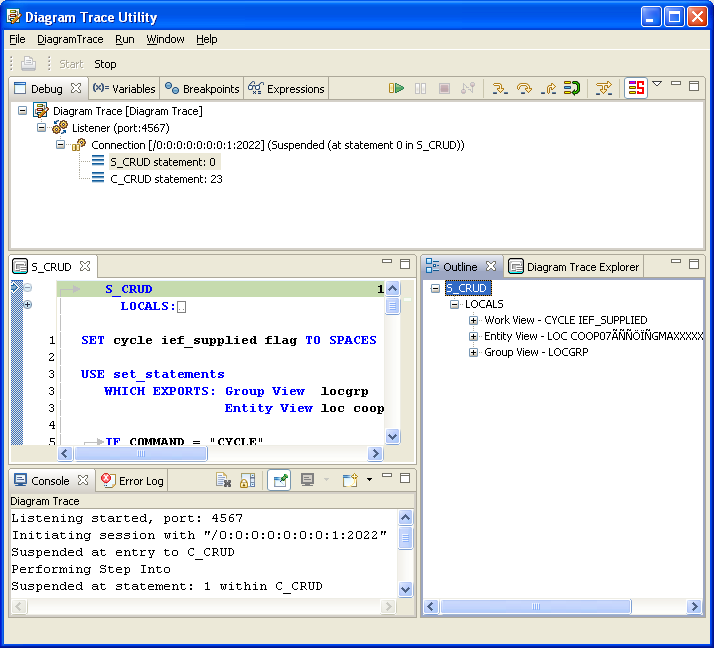
Example: The Diagram Trace Explorer view is stacked with the Outline view into a tabbed notebook and the Outline view is the active view.
|
Copyright © 2013 CA.
All rights reserved.
|
|